
PM Quality Auditor
Audit active PM Templates for data quality, score 0–100 with severity-weighted rules, fix issues inline — edit template details, every schedule field, and view full checklist task breakdowns directly from the audit view.
Asset Checkout Manager
Bulk checkout/check-in with custom home location picker, status filter dropdown, CSV export with Asset ID, and illustrated how-to instructions modal.
File Management Dashboard (V 1.2)
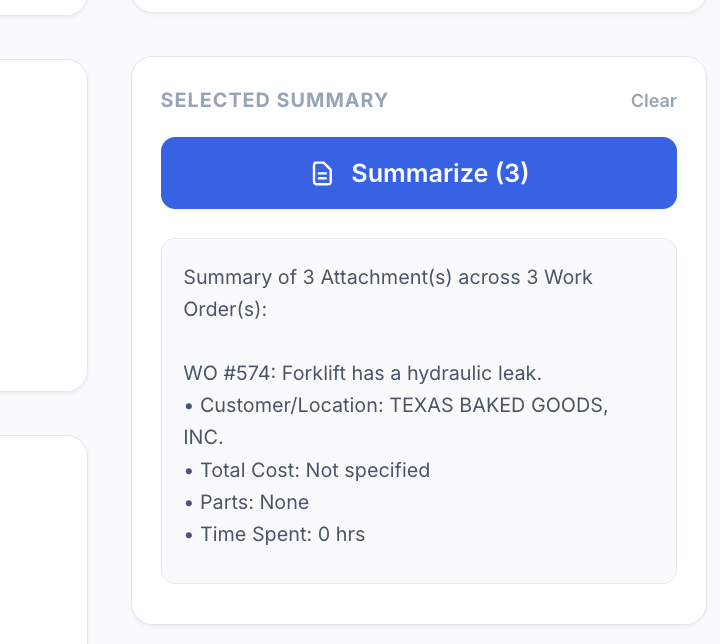
Manage and analyze work order attachments with filtering, multi-select, and automated detail summarization (cost, parts, labor). Inline file preview modal for images and PDFs with Print/Save as PDF and Copy Link support. Fetches ALL work orders with no cap, filtered to last 30 days by default. CSV export of all WO attachment links.
PDF Builder
Generate professional PDFs from work orders with a visual drag-and-drop builder. Supports single and multi-WO batch printing.


Work Order Capacity Management
This app gives supervisors a real-time view of team capacity by grouping active work orders by technician. Use it to spot overloaded team members, identify unassigned work, and reassign work orders without leaving the app.
Work Order Heatmap
Heatmap visualization of work orders by category and location with interactive filters, drill-down, inline category editing, and CSV/PDF export.
Workload Manager Pro
See every technician's open work order count at a glance. Filter by workload status — Overloaded, Balanced, or Has Capacity — drill into individual queues, and reassign tasks to keep your team balanced.
Asset Location Tracker
Track and manage asset locations across your organization. Search and filter assets, click any asset to view its current location, relocation history, and completed work orders. Use "Re-Assign Asset Location" to move a single asset, or enable "Bulk Select" to move multiple assets at once. Export the relocation log as CSV or print the detail view as a PDF. Filter completed work orders by preset (All Time, Last 30 Days, Last 90 Days) or Custom date range. Tap ? to re-open the About this App banner at any time. Hit Refresh to pull in newly added assets or locations from UpKeep.

IFTA Compliance Reporter ✅
Track, calculate, and prepare your IFTA. Monitor total miles, fuel usage, MPG, and state-by-state tax exposure in one centralized dashboard. The app validates quarterly data, calculates net tax automatically, and provides export-ready reports so your fleet stays compliant and filing-ready every quarter.
Vendor Performance Scorecard ✅
Use this app to evaluate and compare every vendor in your UpKeep account on a single performance scorecard. **What it does:** Links each vendor to their purchase orders, work orders (via vendor-type user assignments), and asset associations — then scores them on response time, repeat visits, and average cost. **When to use it:** During vendor reviews, budget planning, or when deciding whether to renew a vendor relationship. Ideal for maintenance managers who want a quick, data-driven picture of vendor performance. **How to use it:** 1. The app loads automatically and pulls all vendors, work orders, purchase orders, and assets from UpKeep. 2. Use the Search field to filter by vendor name, type, email, or contact. 3. Use the Vendor Type dropdown to narrow results to a specific category. 4. Click any vendor row to expand linked purchase orders, work orders, and full vendor details. 5. Click **Export CSV** to download the currently filtered vendors as a spreadsheet-ready CSV file (includes Vendor ID). 6. Click Refresh (↺) at any time to pull the latest data and recalculate all scores. 7. Click the ? icon next to Refresh for a quick in-app guide. **Score:** Composite 0–100 based on Response time (40%), Repeat visits (35%), and Avg cost (25%). Higher = better. Vendors with no linked activity show N/A.
Cumulative Meter Reading ✅
Track and log cumulative meter readings for equipment like odometers, hour meters, and production counters. Search and filter meters by name, location, or linked asset. Click any meter to view its full reading history and submit new readings. The app automatically calculates the running total by adding your entered amount to the last recorded value. Use Refresh to pull the latest data from UpKeep at any time.

Work Order Parts Procurement
Use this app to manage procurement for active work orders that require parts. It scans all open work orders in your UpKeep account and surfaces those with parts assigned, so your team can quickly identify supply gaps and create purchase orders before a job stalls. When to use it: Before scheduled maintenance begins, during a daily procurement review, or whenever you need to confirm that parts are available for pending work orders. How to use it: 1. The app automatically loads all open work orders with parts on first launch. 2. Use the Search field to find a specific work order by title or WO number, or use Priority to filter down to urgent items. 3. Click the ▶ arrow on any row to expand the parts detail panel — this shows each required part, its quantity, availability status, and estimated line cost. 4. Click Create PO on any row to open the purchase order form. Fill in a vendor, adjust quantities if needed, set a due date, and submit. The PO is saved directly in UpKeep. 5. Click Export CSV to download the current list. Each part gets its own row — a work order with 3 parts produces 3 rows, each repeating the WO details alongside part name, quantity, unit cost, line total, and availability. Apply filters first to narrow the export. 6. Use Mark Reviewed to dim work orders you have already actioned. This helps track your progress during a review session (marks reset on Refresh). 7. Click Refresh at any time to re-scan UpKeep for the latest work order and parts data.

Site Operations Card ✅
A mobile-friendly reference card for every location in your UpKeep account. Use it before heading to a site to quickly review access codes, key contacts, PPE requirements, operating hours, connectivity, and vehicle constraints — without opening a work order. **When to use it:** Any time a technician needs to arrive on-site prepared. Ideal for first visits, after-hours calls, or whenever site details aren't part of the assigned work order. **How to use it:** 1. Open the app and search or scroll to find your site. 2. Tap the location to open its reference card. 3. If no info has been added yet, tap **Add Reference Info** to get started. 4. Expand any section (Site Access, Contacts, Safety, etc.) to view details. Tap **Add info** inside any empty section to jump straight into editing. 5. Tap **Edit** (or **Add Info** if empty) in the header to fill in or update all sections at once. 6. Once inside a location, use the **Export CSV** button to download the data as a spreadsheet, or **Print / PDF** to save or print a formatted copy — great for taking offline or sharing with your team. 7. Use the **Refresh** button (↻) to reload the location list if new sites have been added.

Warranty Asset Tracker ✅
Use this app to look up any asset in your UpKeep account and instantly see its warranty status — In Warranty, Expired, or No Warranty. You can also set, update, or remove warranty expiration dates directly from the app. When to use it: Use this app when you need to check or manage warranty coverage before scheduling service, responding to a breakdown, or planning maintenance. How to use it: 1. The app loads all assets and locations automatically on open. 2. Use the Search bar to find an asset by name, serial number, or barcode. 3. Use the Location filter (dropdown) and Category filter (type-ahead text box) to narrow results — type any part of a category name to instantly filter. 4. Use the Status and Year filters to narrow further — all filters combine automatically. 5. Click "Edit Warranty" on any card to set or update the warrantyExpiration date for that asset. Changes save directly to UpKeep. 6. Click "Work Order" on any asset card to open a pre-filled service request with title, description, due date, and optional photos — linked to that asset. 7. Click the green "Export to CSV" button to download all currently visible assets as a CSV file — includes Asset ID, Warranty Status, expiration date, and more. 8. Click the ⓘ icon in the header for a full How to Use guide inside the app. 9. Click Refresh at any time to reload the latest data from UpKeep.


Safety Hazard Tracker ✅
Use this app to identify, monitor, and escalate safety hazards across all work orders in your UpKeep account. Open the app to automatically see work orders flagged by built-in hazard detection rules. Use the Rules tab to customize which conditions flag a work order — by keyword, priority level, or status. Apply filters to narrow results by location, asset, or priority, then click any row to view full details. Use Refresh to reload data after changes are made in UpKeep. No setup required — the app loads and runs immediately.

Asset Replacement Prioritization ✅
Identify which assets should be repaired or replaced based on total maintenance cost, age, and performance trends. Automatically score assets by urgency and drill into cost history to support smarter capital planning decisions.


Parts Forecast Planning
Parts Forecast Planning shows you which parts will be needed for upcoming work — before jobs start. It loads all incomplete work orders from UpKeep, aggregates every part they require, and compares total demand against current inventory so you can catch shortages in advance. Use the Export CSV button to download the currently displayed parts forecast — including Part IDs — as a spreadsheet-ready file. When to use it: Use this app before a busy maintenance period, during weekly planning reviews, or any time you want to confirm your inventory can support the work ahead. How to use it: 1. The app loads automatically — no setup required. 2. Use the Status filter to narrow results by work order state (Open, In Progress, On Hold, or all incomplete). 3. Use Due From / Due To to scope the forecast to a specific date window. 4. Use Stock Status to instantly isolate parts with a shortage or parts that are already well-stocked. 5. Click Refresh to reload the latest work orders from UpKeep after making changes. 6. Click Export CSV to download the visible parts list (including Part ID) as a CSV file for use in spreadsheets or procurement workflows. 7. Review the summary cards for a quick snapshot of total parts needed, unique parts, shortages, and work order count. 8. Expand any row in the table to see exactly which work orders need that part and when they are due.
Asset Downtime Tracker
Use this app to log historical downtime events for assets tracked in UpKeep. Select the affected asset, enter the start and end time of the downtime, choose a category, and submit. Each event writes status records directly to UpKeep and gives you the option to create a linked work order with event details pre-filled. Use the History tab to view previously created downtime work orders and export them to CSV. Customize the work order title prefix, default priority, default work order category, and shift names in Settings.

UpKeep Maintenance Scorecard ✅
Get a complete health check of your UpKeep account in one view. The Maintenance Scorecard analyzes your work orders, assets, preventive maintenance, and user activity — then scores your team's performance against industry benchmarks. Instantly see what's working, what's underutilized, and where the biggest opportunities are to improve operations.

Inspection Failure Follow-Up Manager ✅
Monitor failed and flagged inspection checklist items across all work orders. Configurable failure detection, date range presets (Last 30/90 Days, This Month, Last Month, All Time), WO status scope, category and keyword filters. Always paginates in pages of 1,000 to capture every result — shows a live "X work orders loaded" counter during multi-page fetches. Create follow-up work orders with one click.

Shift Notes & Handoff ✅
Shift Handover keeps every shift informed and accountable by capturing structured handover notes that the incoming team can act on immediately. **What it does** Document issues, safety alerts, production constraints, and follow-up actions at the end of each shift. Handovers are organized by shift (A / B / C) and linked to UpKeep locations and team members. **When to use it** Use this app at the end of every shift — before the next team arrives — to record what happened, flag anything that needs attention, and hand off open items cleanly. **Basic steps** 1. Click **New Handover** and select your shift (A, B, or C). 2. Choose a location from your UpKeep account or type a custom area name. 3. Fill in the top issues from your shift. Add safety notes or production constraints if needed. 4. Check **Follow-up Action Required** if the next shift needs to take action on an open item. 5. Submit the handover. It will appear in the list under your shift tab. 6. Optionally click **Create WO** on any handover to push it into UpKeep as a work order. 7. Click **Close** when the item is resolved — any linked work order will be completed in UpKeep automatically. 8. Use the blue **Print PDF** button at the top of the list to export all currently visible shift notes as a single PDF report. Switch tabs first to filter what gets printed. **Note:** Handovers are stored in this browser only and will not sync across devices or sessions.
Parts Quality Auditor ✅
Review Parts records against quality rules to identify missing information and inconsistencies. View scores, drill into flagged records, and correct issues to maintain accurate inventory data.


Impact Dashboard ✅
The Impact Dashboard turns your UpKeep work orders into a role-based KPI summary — giving maintenance managers, supervisors, technicians, reliability engineers, facilities leads, and EHS teams the metrics they need at a glance.
Asset Tag Studio
Industrial Asset Label Maker — full printer library (Avery, Brady, Brother, DYMO, Epson, Honeywell, Rollo, Sato, TSC, Zebra + Custom), exact label stock sizes, roll & sheet print modes, drag-to-reorder fields, auto-scaling text, asset filtering, name-based sorting (A-Z/Z-A), and step-by-step help modal.
Labor & Expense Report Pro (Total History)
The ultimate tool for financial and labor oversight. Pre-loads your entire work order history on startup for instant filtering. Features multi-select for Status, Category, and Location filters. Date range filtering by Due Date, Created Date, or Completed Date. Includes itemized breakdowns of every time log entry and part cost, professional PDF generation, WO# search, sort options, and Excel export.
Part Label Maker
Search and filter parts inventory, then design and print QR code labels with printer presets (Dymo, Zebra, Brother, Avery, Standard, Custom), roll/sheet modes, and label field customization.
Maintenance Planning & Compliance Dashboard
A professional maintenance planning dashboard with multi-month lookahead, PM compliance tracking, and interactive drilldown panels. Projected PMs respect pause state, start dates, and show whether they are calendar-based or completion-based. All WO, Asset, Location, and PM Schedule details open inline. Supports status updates and assignee reassignment from within the detail panel.
Work Order Real-Time Activity Dashboard
Shop-floor TV board showing all In-Progress Work Orders with actively running timers — technician name, WO number, title, asset, location, elapsed time, and color-coded status. Auto-refreshes every 30 seconds.
UpWord 🔧
UpWord 🔧 is your daily maintenance brain teaser. Guess a 5-letter word pulled from your UpKeep data — assets, parts, locations, and more. Six tries. Build your streak. Challenge your team.


Work Order Routing & Dispatch ✅
Route Planner helps dispatchers plan and optimize field service routes across multiple work orders in a single day. Set your starting point via GPS, a saved UpKeep location, or any address. Filter and select open work orders by status, priority, location, or assignee — then generate a drive-time-optimized stop order. On each stop, launch turn-by-turn navigation, log travel time directly to the work order, and broadcast directions to the activity feed — all from one streamlined interface.

Technician Performance Coach ✅
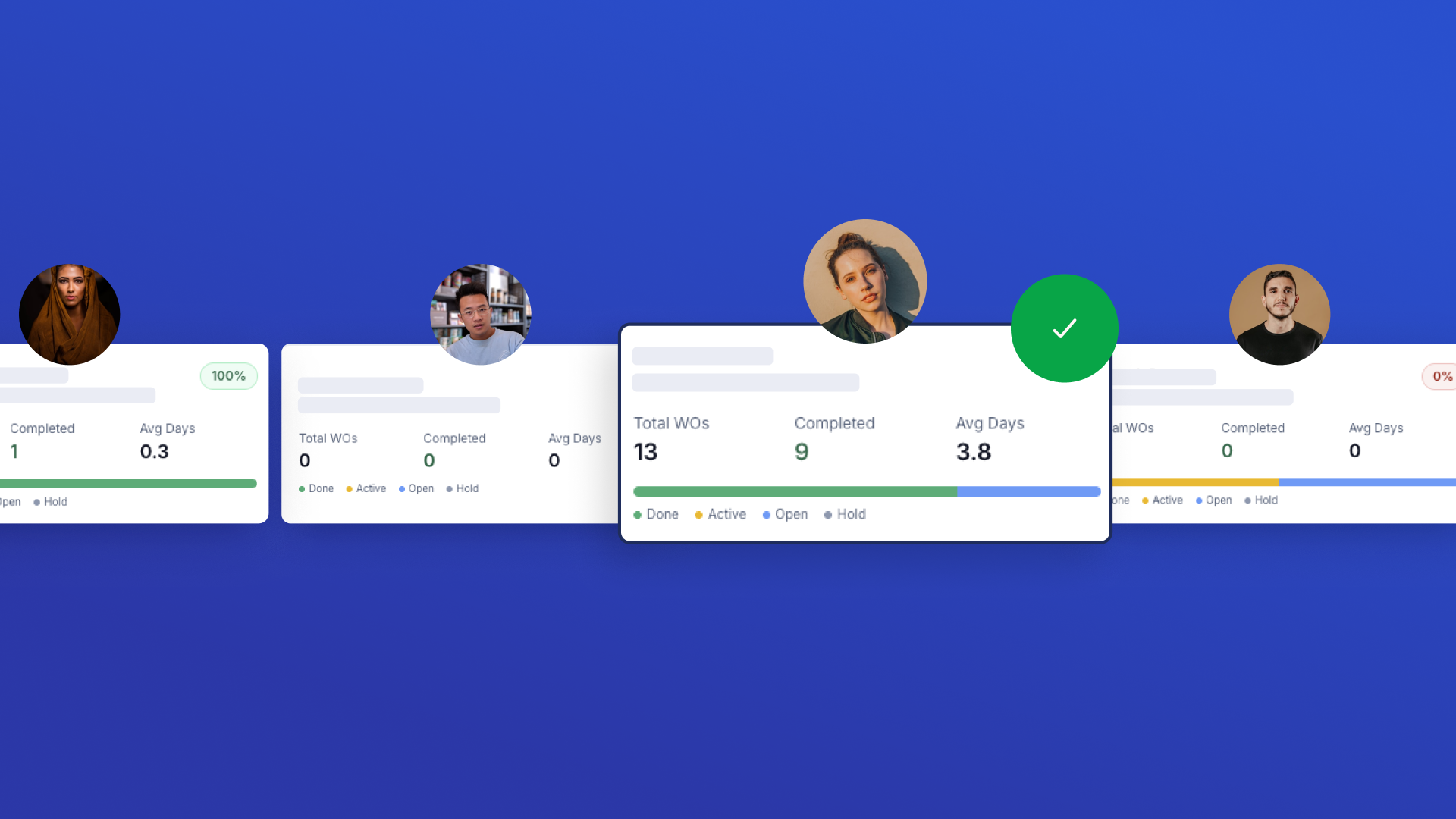
Use this app to monitor and coach your maintenance technicians using live UpKeep work order data. When to use: In weekly team reviews, 1-on-1 check-ins, or any time you need a quick read on how your team is performing. Steps: 1. Select a Timeframe (Last 30 Days, 90 Days, 12 Months, or All Time) to control which work orders feed into the metrics. 2. Browse the roster — each card shows the technician's completion rate, total WOs, and average resolution time. Use Search to find a specific person, or Sort to rank the team. 3. Click any technician card to open their detail view: status and priority breakdowns, category distribution, and a table of recent work orders. 4. Tap "Generate Coaching Report" at the bottom of the detail view to get a personalised performance rating, key strengths, improvement areas, and actionable recommendations. 5. Use Refresh (↻) at any time to reload all technicians and work orders from UpKeep so your metrics reflect the latest activity.
Repair or Replace Cost Evaluator ✅
A specialized decision-support tool for maintenance managers to compare repair estimates against replacement costs using the industry-standard 50% rule. Features inline field guidance, a collapsible How to Use panel, a ratio tooltip, contextual recommendation reasons, and live calculations. Saves analysis decisions as update messages to work orders.


Quick Checklist Completion ✅
Use this app to run structured field inspections and automatically log results as a completed Work Order in UpKeep. When to use: Any time a technician needs to perform a scheduled or ad-hoc inspection — daily equipment checks, HVAC, fire safety, plumbing, or electrical walkthroughs. How to use: 1. Setup — Choose an inspection type (required). Optionally select a location and asset to link the work order to a specific site or piece of equipment. 2. Inspect — Mark every checklist item as Pass, Flag (needs attention), or Fail (immediate action required). All items must be marked before proceeding. 3. Review & Submit — Confirm results, add optional notes, and tap Submit. A completed Work Order is created in UpKeep with priority set automatically based on results (High if any Fail, Medium if any Flag, Low if all Pass).

Parts Quick Adjust
Use this app to quickly search or scan parts and adjust inventory quantities — without opening UpKeep's full interface. **What it does:** Provides a guided 3-step flow to find a part, optionally update its details (name, cost, location, min qty), then save a quantity change directly to UpKeep. **When to use it:** During cycle counts, receiving stock, issuing parts to a job, or correcting inventory discrepancies. **How to use it:** 1. Search by part name, part number, or barcode — or tap Scan Barcode to use your camera. 2. Select the matching part from the results list. Each result shows the part name, number, location, quantity, and stock status — making it easy to pick the right inventory line when the same part exists at multiple locations. 3. Review and optionally update part details (all fields optional). 4. Enter the adjustment amount — positive to add stock, negative to remove it. 5. Add an optional reason note, then tap Save Adjustment. All changes are saved directly to the part record in UpKeep and will be visible on the Parts page. Note: UpKeep's Adjustments tab is only populated through Work Order part consumption and Purchase Order receiving — not through direct quantity edits via the API. Use Refresh (↺) to reload parts if inventory was recently updated elsewhere.
Team Assignment Dashboard ✅
Team-first dashboard for quickly assigning or reassigning work orders. Filter by team, search people by name, view member cards with their open WOs, and open a person drawer to see all assigned work orders or create/reassign in a few taps. Supports multi-select for bulk reassignment.
Open Work Order Assignment Board ✅
View all open, unassigned work orders in one place and quickly take ownership. Review job details, priority, due dates, and location before assigning work to keep maintenance moving and reduce dispatch delays.

Work Order Print & Share
Instantly find any work order and share a clean, print-ready link with technicians, contractors, or vendors — no full system access required. Search by title or number, filter by status and priority, customize visible columns, drag column edges to resize, select multiple work orders for bulk URL copying, and share in one tap via link copy or mobile device sharing.

Asset Data Quality Auditor ✅
Review Asset records against quality rules to identify missing information and structural gaps. View scores, drill into flagged records, and correct issues to ensure reliable maintenance tracking.


Location Data Quality Auditor ✅
Review Location records against quality rules to identify missing data, inconsistencies, and structural issues. Configure rules in the Rules tab, click Run Audit to evaluate all locations, then review your quality score and fix issues inline. Rules are saved locally and applied on every audit run.


Weather Monitor Dashboard ✅
Monitor real-time weather for all UpKeep locations with GPS. Two-tab layout: Live Weather shows current conditions per location; Set Up GPS has two sub-tabs — Needs GPS (locations with an address but no coordinates) and Needs Address (locations missing an address entirely, with inline address entry). Wind displays as "6.1 mph E".

Paper Work Request Scan ✅
Upload or capture a handwritten or printed service request and instantly generate a structured Work Request in UpKeep. Extracts title, description, asset, location, priority, requested by, department, date submitted, and more — with asset matching and low-confidence highlighting. Simple 3-step workflow: Upload, Review & Edit, Submit.
Multi-Asset Work Order Builder
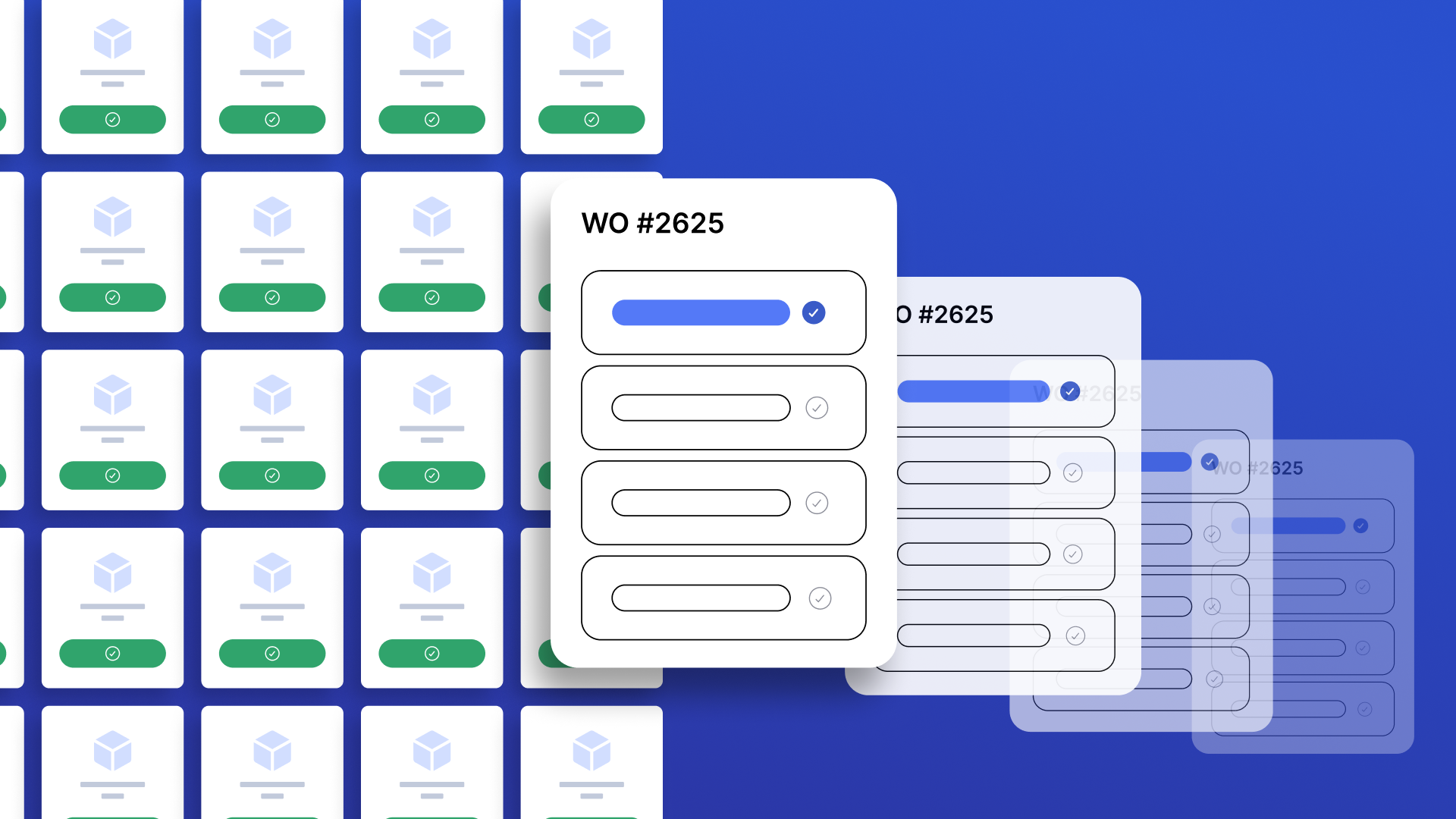
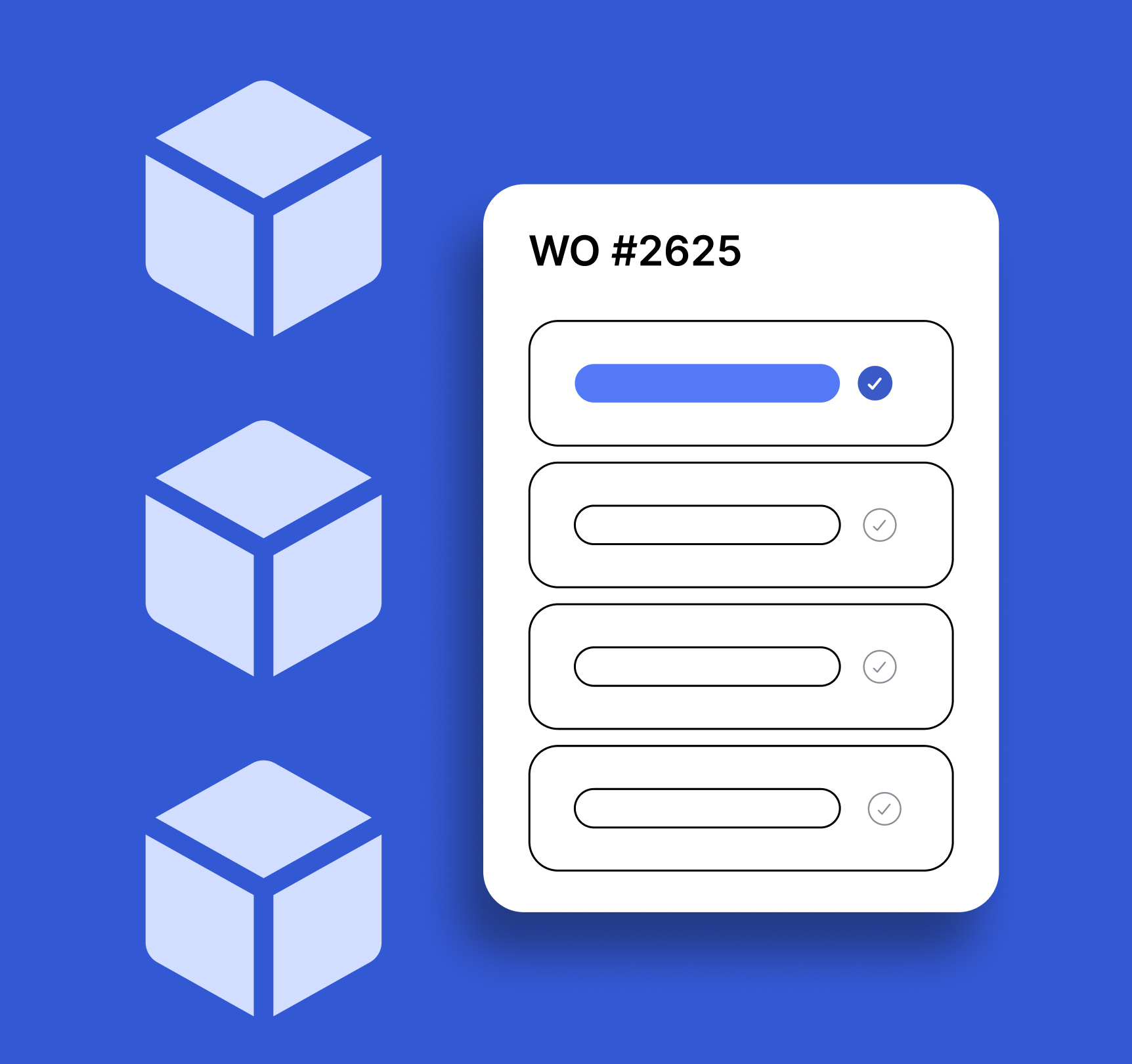
Create work orders across multiple assets in one step. Fill in shared work order details first, then select assets — one work order is automatically created per asset. Categories are sourced from your last 1000 created work orders merged with a built-in list, so the category dropdown always has real options and auto-selects the first one.
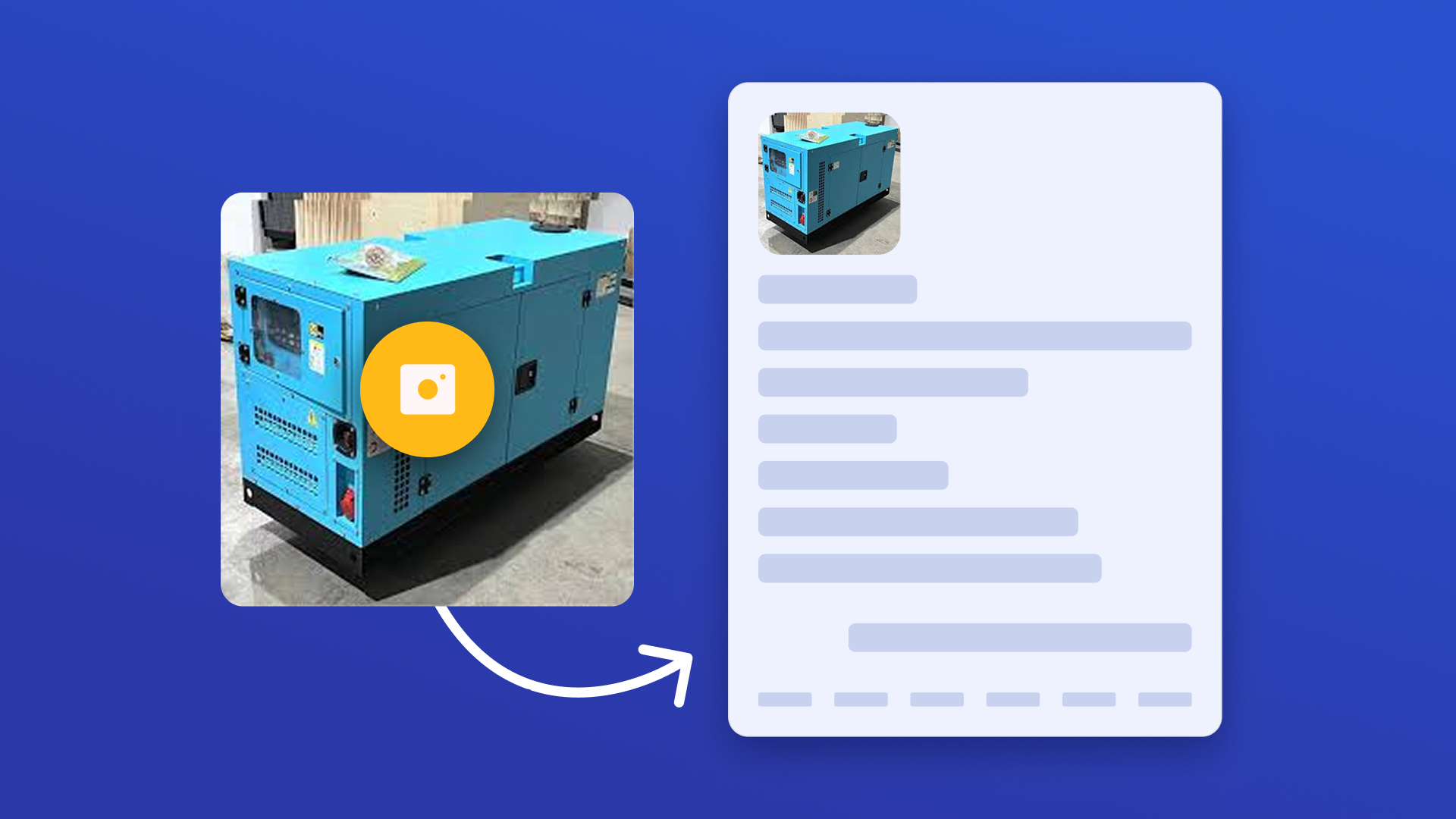

Asset Plate Scanner ✅
Capture equipment data plates with a quick photo and instantly create structured Asset records in UpKeep. The app automatically extracts key details like manufacturer, model, serial number, and asset name, then maps them to the correct fields.

Paper Inspection & Checklist Scan ✅
Upload a paper inspection form or safety sheet and automatically convert it into a structured Checklist template in UpKeep. Extract sections, questions, and response types to eliminate manual setup and standardize inspections across sites.
Work Order Duplicate Detector ✅
Find and fix duplicate work orders fast. Scans all work orders across all statuses, excludes recurring PM work orders, and lets you review matches side by side to archive duplicates and keep your backlog clean.
Maintenance Unit Converter ✅
A lightweight, mobile-first utility for fast and accurate unit conversions tailored for maintenance professionals. Supports 8 categories — Pressure, Temperature, Torque, Length, Volume, Weight/Mass, Flow Rate, and Speed — with live results, a swap button, and a 5-item conversion history. Clean, accessible UI aligned with UpKeep design standards.


Work Order Request Duplicate Detector ✅
Find and fix duplicate work order requests fast. Review matching requests side by side, confirm which one is the real one, and decline or delete the extra so your backlog stays clean and your team doesn't waste time on the same request twice.
Paper Work Order Scan ✅
Capture handwritten or printed work orders with a quick photo and instantly create structured Work Order records in UpKeep. Extracts title, description, asset, location, priority, due date, assigned technician, and more — then maps them to the correct fields with asset matching and low-confidence highlighting.


Purchase Order Scan ✅
Upload or capture a paper/PDF purchase order and automatically extract vendor, line items, totals, and shipping details to create a structured Purchase Order in UpKeep. Features vendor matching, editable line items, financial summary, and a simple 3-step workflow: Upload, Review & Edit, Create PO.