Safety Hazard Tracker ✅
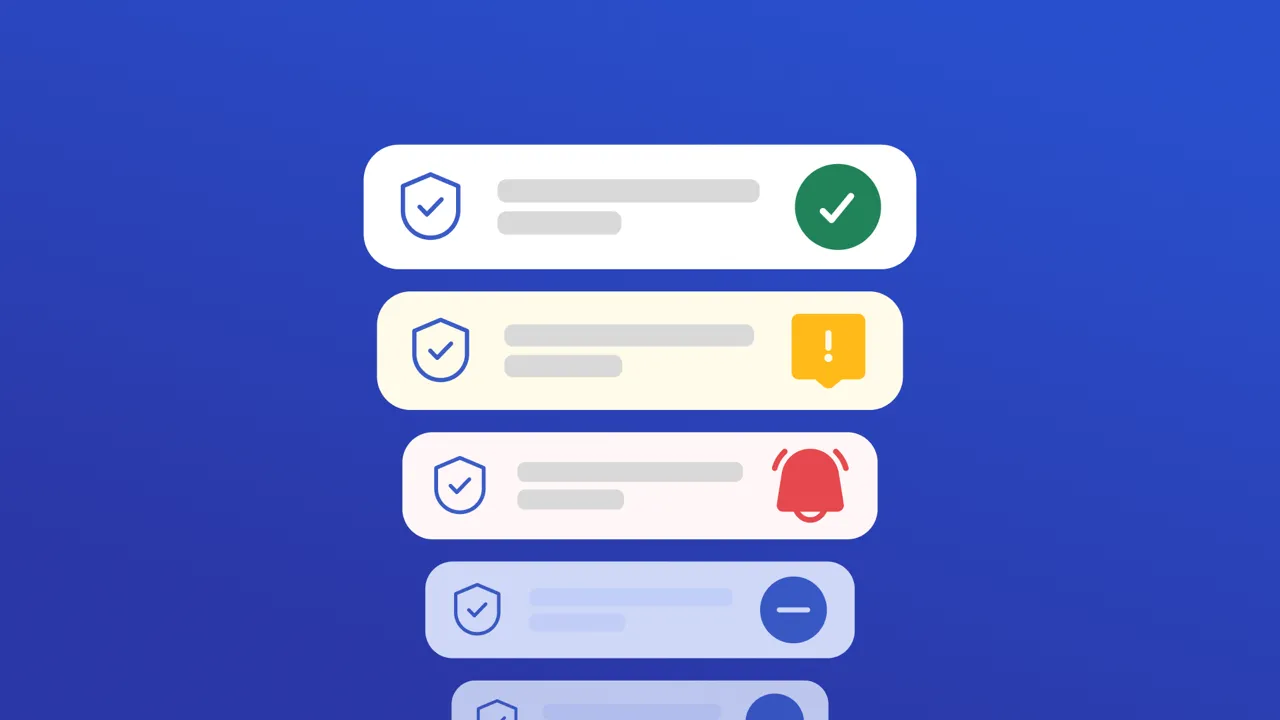
Use this app to identify, monitor, and escalate safety hazards across all work orders in your UpKeep account. Open the app to automatically see work orders flagged by built-in hazard detection rules. Use the Rules tab to customize which conditions flag a work order — by keyword, priority level, or status. Apply filters to narrow results by location, asset, or priority, then click any row to view full details. Use Refresh to reload data after changes are made in UpKeep. No setup required — the app loads and runs immediately.
Shift Notes & Handoff ✅
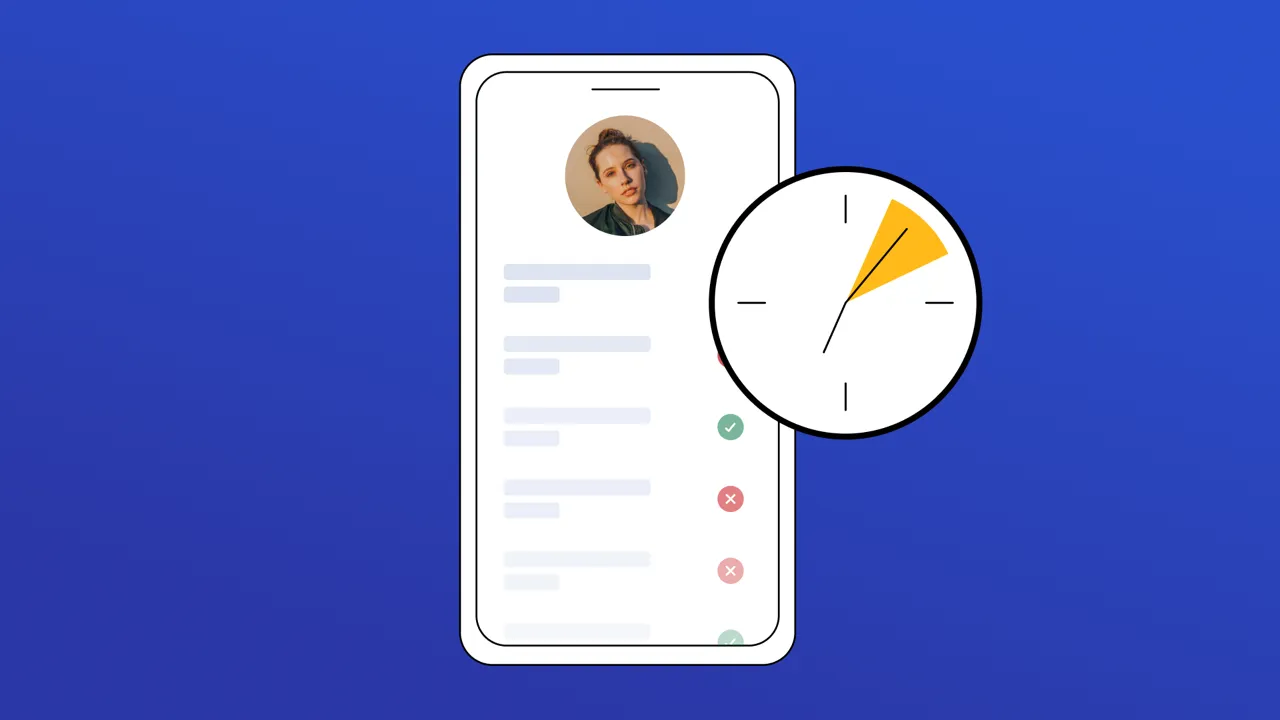
Shift Handover keeps every shift informed and accountable by capturing structured handover notes that the incoming team can act on immediately. **What it does** Document issues, safety alerts, production constraints, and follow-up actions at the end of each shift. Handovers are organized by shift (A / B / C) and linked to UpKeep locations and team members. **When to use it** Use this app at the end of every shift — before the next team arrives — to record what happened, flag anything that needs attention, and hand off open items cleanly. **Basic steps** 1. Click **New Handover** and select your shift (A, B, or C). 2. Choose a location from your UpKeep account or type a custom area name. 3. Fill in the top issues from your shift. Add safety notes or production constraints if needed. 4. Check **Follow-up Action Required** if the next shift needs to take action on an open item. 5. Submit the handover. It will appear in the list under your shift tab. 6. Optionally click **Create WO** on any handover to push it into UpKeep as a work order. 7. Click **Close** when the item is resolved — any linked work order will be completed in UpKeep automatically. 8. Use the blue **Print PDF** button at the top of the list to export all currently visible shift notes as a single PDF report. Switch tabs first to filter what gets printed. **Note:** Handovers are stored in this browser only and will not sync across devices or sessions.