
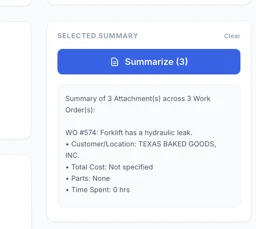
File Management Dashboard
Manage and analyze work order attachments with filtering, multi-select, and automated detail summarization (cost, parts, labor). Inline file preview modal for images and PDFs with Print/Save as PDF and Copy Link support. Fetches ALL work orders with no cap, filtered to last 30 days by default. CSV export of all WO attachment links including WO Number.
Asset Location Tracker
Track and manage asset locations across your organization. Search and filter assets, click any asset to view its current location, relocation history, and completed work orders. Use "Re-Assign Asset Location" to move a single asset, or enable "Bulk Select" to move multiple assets at once. Export the relocation log as CSV or print the detail view as a PDF. Filter completed work orders by preset (All Time, Last 30 Days, Last 90 Days) or Custom date range. Tap ? to re-open the About this App banner at any time. Hit Refresh to pull in newly added assets or locations from UpKeep.

Work Order Parts Procurement
Use this app to manage procurement for active work orders that require parts. It scans all open work orders in your UpKeep account and surfaces those with parts assigned, so your team can quickly identify supply gaps and create purchase orders before a job stalls. When to use it: Before scheduled maintenance begins, during a daily procurement review, or whenever you need to confirm that parts are available for pending work orders. How to use it: 1. The app automatically loads all open work orders with parts on first launch. 2. Use the Search field to find a specific work order by title or WO number, or use Priority to filter down to urgent items. 3. Click the ▶ arrow on any row to expand the parts detail panel — this shows each required part, its quantity, availability status, and estimated line cost. 4. Click Create PO on any row to open the purchase order form. Fill in a vendor, adjust quantities if needed, set a due date, and submit. The PO is saved directly in UpKeep. 5. Click Export CSV to download the current list. Each part gets its own row — a work order with 3 parts produces 3 rows, each repeating the WO details alongside part name, quantity, unit cost, line total, and availability. Apply filters first to narrow the export. 6. Use Mark Reviewed to dim work orders you have already actioned. This helps track your progress during a review session (marks reset on Refresh). 7. Click Refresh at any time to re-scan UpKeep for the latest work order and parts data.


Parts Forecast Planning
Parts Forecast Planning shows you which parts will be needed for upcoming work — before jobs start. It loads all incomplete work orders from UpKeep, aggregates every part they require, and compares total demand against current inventory so you can catch shortages in advance. Use the Export CSV button to download the currently displayed parts forecast — including Part IDs — as a spreadsheet-ready file. When to use it: Use this app before a busy maintenance period, during weekly planning reviews, or any time you want to confirm your inventory can support the work ahead. How to use it: 1. The app loads automatically — no setup required. 2. Use the Status filter to narrow results by work order state (Open, In Progress, On Hold, or all incomplete). 3. Use Due From / Due To to scope the forecast to a specific date window. 4. Use Stock Status to instantly isolate parts with a shortage or parts that are already well-stocked. 5. Click Refresh to reload the latest work orders from UpKeep after making changes. 6. Click Export CSV to download the visible parts list (including Part ID) as a CSV file for use in spreadsheets or procurement workflows. 7. Review the summary cards for a quick snapshot of total parts needed, unique parts, shortages, and work order count. 8. Expand any row in the table to see exactly which work orders need that part and when they are due.


Inspection Failure Follow-Up Manager ✅
Monitor failed and flagged inspection checklist items across all work orders. Configurable failure detection, date range presets (Last 30/90 Days, This Month, Last Month, All Time), WO status scope, category and keyword filters. Always paginates in pages of 1,000 to capture every result — shows a live "X work orders loaded" counter during multi-page fetches. Create follow-up work orders with one click.