
AI-POWERED MAINTENANCE ASSISTANT
Your AI That Works While You Don't.
Nova runs in the background on a schedule, reviewing your data, flagging what needs attention, and handling routine tasks. You just review and approve.







WHY UPKEEP NOVA
The First Maintenance AI That Actually Does the Work
Most AI assistants wait for you to ask. Nova works in the background, reviewing data, catching issues, and flagging what needs attention.
Pulse: Nova on Your Schedule
Set up a recurring task and Nova delivers results automatically, with no daily prompting. Describe what you want, choose which days to run, and wake up to a feed of insights. Review on-hold work orders daily. Audit parts data each morning. Get a weekly reliability analysis.
Knowledge Base That Learns
Nova learns your team's preferences and rules as you chat: who handles what, naming conventions, approval steps. Then it applies them every time. The more you use it, the more tailored it gets to how your operation runs.
Forward Emails, Get Work Done
Forward invoices, purchase orders, and vendor quotes to Nova and it summarizes them, logs them, or turns them into work orders automatically. No copy-pasting, no manual entry.
Hands-Free in the Field
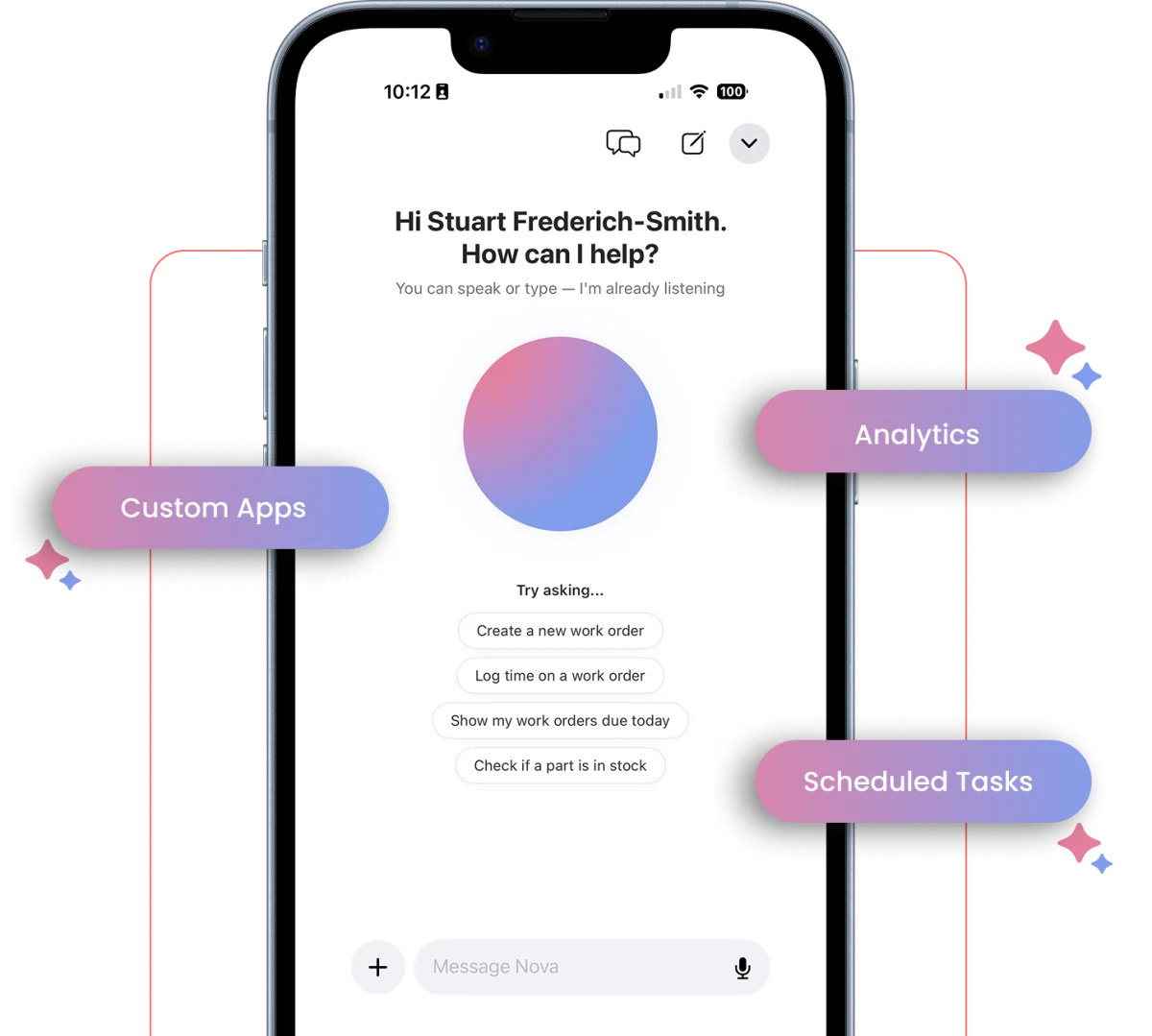
For technicians, Nova lives in your pocket. Create work orders, check inventory, look up asset history, and close out jobs just by talking. No more tapping through screens.
Need multiple agents, dedicated infrastructure, and advanced workflows? Learn about Supernova →
NOVA APPS
Build the apps your team needs
Tell Nova what you need and it builds the app for you, on your own data and permissions. Or grab one that's already built and start using it today.
Describe it, Nova builds it
Tell Nova what you need in plain words, and it builds the app for you.
Custom-built with our team
Need something more involved? Our team will build it with you, integrations and all.
Prebuilt apps
Dozens of apps for maintenance, safety, and operations teams. Install one in a click and start using it.
USE CASES
The Work That Used to Eat Your Day
Automated Data Audits
Nova runs scheduled checks on your parts, assets, and work orders, flagging inconsistencies and data-quality issues automatically. Review on-hold WOs daily, catch parts issues every morning, and audit asset naming weekly.
Instant Admin Work
Nova turns messy technician notes into structured work orders. It pulls parts lists from PDFs, writes closeout documentation, and builds PM checklists, without you typing a thing.
Bulk Fixes
Relabel parts, standardize names, close out stale work orders, and update fields across your system, all in one conversation with Nova. Fix hundreds of records without a spreadsheet.
Hands-Free Field Work
On mobile, technicians get the same tools hands-free. Check inventory, pull up asset history, create work orders, and close out jobs without touching the screen.
WHAT CUSTOMERS ARE SAYING
Hours Back, Every Week
Maintenance teams are using Nova to eliminate busywork and focus on what matters.

"Nova turned tasks I had shelved for months into instant wins... It's completely changed how I work. It's like having 10 assistants, minus the overhead."
NOVA FOR EVERY ROLE
From the Back Office to the Field
Whether you're managing data quality from a desk or fixing equipment with dirty hands, Nova meets you where you work.
For Maintenance Managers & Admins
Stop Doing the Work. Start Reviewing the Work.
- Wake up to a prioritized inbox of insights
- Clean up messy data in minutes with bulk actions
- Define your standards once and Nova enforces them
For Technicians
No More Tapping Through Screens.
- Ask questions hands-free while you work
- Document repairs by voice and Nova writes the notes
- Close out work orders with one command
For Ops Leaders
AI That Delivers ROI, Not Just Features.
- Automated data quality without adding headcount
- Proactive insights surface problems early
- Better data in, better decisions out
NOVA PRICING
Choose Your Plan
Every UpKeep plan includes monthly Nova credits, and the allowance scales with your tier.
NOVA
Included with every UpKeep plan
Monthly Nova credits scale by tier
- ✓ Nova AI chat assistant
- ✓ Pulse: scheduled recurring tasks
- ✓ Knowledge Base: learns your team's rules
- ✓ Voice-first mobile access for technicians
- ✓ Email forwarding to Nova
- ✓ Automated data audits and bulk fixes
- ✓ AI-generated work orders and PM checklists
- ✓ Enterprise-grade security and permissions
Frequently asked questions
Will Nova replace our maintenance technicians?
Not at all. Nova is designed to support your team, not replace them. It eliminates repetitive admin work so technicians can focus on what they do best: maintaining equipment, preventing downtime, and solving real problems.
How is Nova different from other AI chatbots?
Most AI assistants wait for you to ask a question. Nova works in the background. With Pulse it runs scheduled tasks, reviews your data, and surfaces what needs attention. You set it up once, and Nova handles the routine work automatically. The chat is still there when you need it, but the real power is in what Nova does without being asked.
What if Nova makes a mistake?
You're always in control. Nova brings insights and recommendations to your Pulse feed, but you decide what to act on. Nothing happens automatically without your approval. Think of Nova as doing the prep work. You make the final call.
How secure is our data?
Nova runs on enterprise-grade infrastructure with encrypted storage, strict access controls, and audit logs. It respects the same permissions as your CMMS, so technicians only see and do what their role allows.
What is Pulse?
Pulse lets Nova run a task for you automatically, on a schedule. Set it up once with a prompt, choose which days to run it, and Nova delivers results on whatever days you choose. Results appear as a running feed you can review anytime. Each user has one Pulse, and you can pause or resume it at any time.
What are Knowledge files?
Knowledge files are created when Nova learns about your organization's processes, preferences, and guidelines through conversations. Over time, Nova builds up context about how your team works, so its responses and Pulse results get more relevant without you having to repeat yourself.
Can Nova build custom apps for us?
Yes. Describe what you need in plain language, the way you would explain it to a new hire, and Nova builds the app: the screens, the logic, and the connection to your existing data and permissions. These are Nova Apps, and they run on your real records rather than a copy, so an asset in a custom app is the same asset as everywhere else in UpKeep. Teams use them for things too specific to ship as a standard feature, like an inspection form matching one line of equipment, a shift handover that follows their own process, or a dashboard pulling across several applications. You review the result and adjust before anyone else sees it. No code required, and Nova Apps run on credits.
Can technicians use Nova on mobile?
Yes, and it's built for hands-free use. Technicians can talk to Nova to create work orders, check inventory, look up asset history, and close out jobs. No typing required.
How long does setup take?
Nova is already in your UpKeep account. Just go to the Pulse tab and describe what you want, and Nova writes the prompt for you. Pick your schedule and you're done. For help configuring Nova for your specific workflows, book a consultation.
READY TO SEE NOVA IN ACTION?
Let Nova Handle the Busywork
Book a free consultation to see how Nova can reduce admin work, improve data quality, and give your team back hours every week.