
Part Label Maker
Search and filter parts inventory, then design and print QR code labels with printer presets (Dymo, Zebra, Brother, Avery, Standard, Custom), roll/sheet modes, and label field customization.
RFQ Portal
Industrial RFQ Portal for parts procurement. Organize low-stock inventory into vendor-specific quote requests and generate professional PDF RFQs.


Parts Forecast Planning
Parts Forecast Planning shows you which parts will be needed for upcoming work — before jobs start. It loads all incomplete work orders from UpKeep, aggregates every part they require, and compares total demand against current inventory so you can catch shortages in advance. Use the Export CSV button to download the currently displayed parts forecast — including Part IDs — as a spreadsheet-ready file. When to use it: Use this app before a busy maintenance period, during weekly planning reviews, or any time you want to confirm your inventory can support the work ahead. How to use it: 1. The app loads automatically — no setup required. 2. Use the Status filter to narrow results by work order state (Open, In Progress, On Hold, or all incomplete). 3. Use Due From / Due To to scope the forecast to a specific date window. 4. Use Stock Status to instantly isolate parts with a shortage or parts that are already well-stocked. 5. Click Refresh to reload the latest work orders from UpKeep after making changes. 6. Click Export CSV to download the visible parts list (including Part ID) as a CSV file for use in spreadsheets or procurement workflows. 7. Review the summary cards for a quick snapshot of total parts needed, unique parts, shortages, and work order count. 8. Expand any row in the table to see exactly which work orders need that part and when they are due.
Parts Quality Auditor ✅
Review Parts records against quality rules to identify missing information and inconsistencies. View scores, drill into flagged records, and correct issues to maintain accurate inventory data.

Parts Quick Adjust
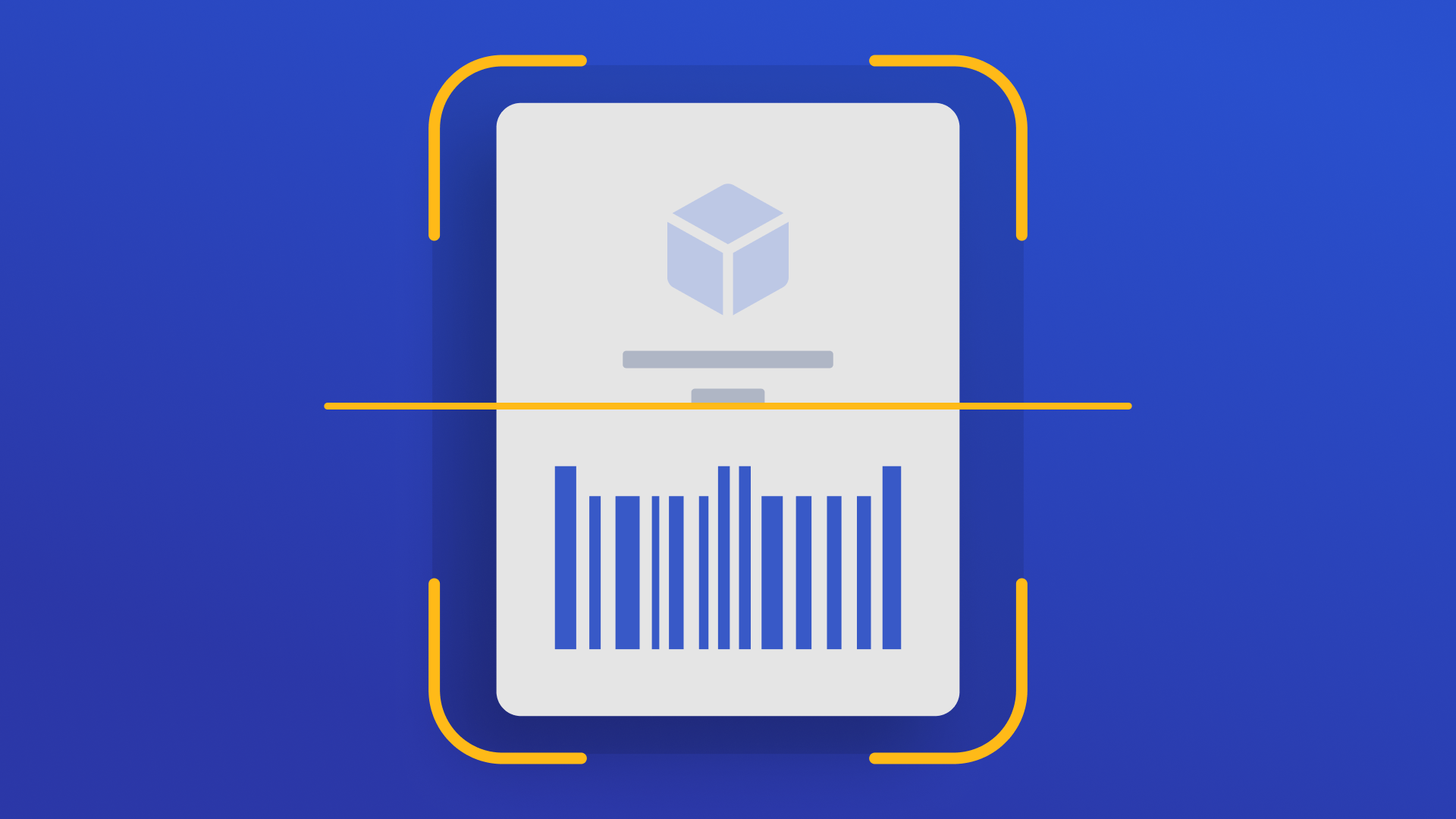
Use this app to quickly search or scan parts and adjust inventory quantities — without opening UpKeep's full interface. **What it does:** Provides a guided 3-step flow to find a part, optionally update its details (name, cost, location, min qty), then save a quantity change directly to UpKeep. **When to use it:** During cycle counts, receiving stock, issuing parts to a job, or correcting inventory discrepancies. **How to use it:** 1. Search by part name, part number, or barcode — or tap Scan Barcode to use your camera. 2. Select the matching part from the results list. Each result shows the part name, number, location, quantity, and stock status — making it easy to pick the right inventory line when the same part exists at multiple locations. 3. Review and optionally update part details (all fields optional). 4. Enter the adjustment amount — positive to add stock, negative to remove it. 5. Add an optional reason note, then tap Save Adjustment. All changes are saved directly to the part record in UpKeep and will be visible on the Parts page. Note: UpKeep's Adjustments tab is only populated through Work Order part consumption and Purchase Order receiving — not through direct quantity edits via the API. Use Refresh (↺) to reload parts if inventory was recently updated elsewhere.