
PM Workload Forecast
Yearly preventative maintenance planning tool with monthly workload distribution and resource visibility, including projected future PMs.
Work Order Completion Audit
Audit non-completed work orders that were previously marked complete and re-opened. Shows who completed and who re-opened each WO, with full timestamps and cycle history from the activity log. Includes a usage guide tooltip.
PDF Builder
Generate professional PDFs from work orders with a visual drag-and-drop builder. Supports single and multi-WO batch printing.
PM Planning Gantt Chart
Professional PM Planning Gantt Chart with full paginated data loading, multi-select type-ahead filters, sortable rows, saved filter views, compliance metrics, inline WO detail/status-update modal, PM schedule detail panel with predicted occurrences, manual refresh, CSV export, and PDF/Print support.
Meter-Triggered Work Orders
Full-cycle meter monitoring platform: predictive alerts tab, triggered WO tracking, reading timeline, and built-in meter reading logging — all in one place.


Work Order Routing & Dispatch ✅
Route Planner helps dispatchers plan and optimize field service routes across multiple work orders in a single day. Set your starting point via GPS, a saved UpKeep location, or any address. Filter and select open work orders by status, priority, location, or assignee — then generate a drive-time-optimized stop order. On each stop, launch turn-by-turn navigation, log travel time directly to the work order, and broadcast directions to the activity feed — all from one streamlined interface.
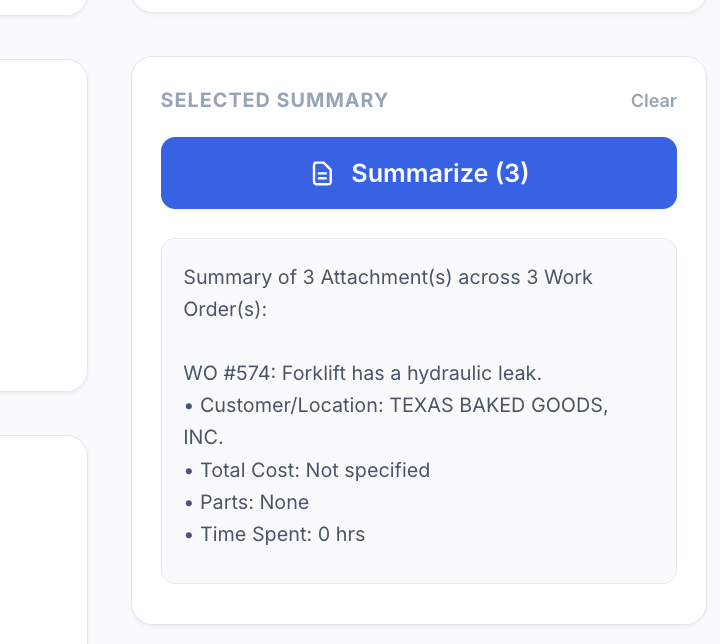
File Management Dashboard
Manage and analyze work order attachments with filtering, multi-select, and automated detail summarization (cost, parts, labor). Inline file preview modal for images and PDFs with Print/Save as PDF and Copy Link support. Fetches ALL work orders with no cap, filtered to last 30 days by default. CSV export of all WO attachment links including WO Number.
Currency Cost Converter
Convert your UpKeep Work Order, Parts, and Purchase Order costs into any world currency using live exchange rates. Work Orders show Labor/Parts/Additional breakdowns in the table, background-fetch detail costs, and export one row per WO with all cost totals in both currencies. Supports 160 currencies, click-to-expand WO cost breakdown, multi-filter, and Reset/Refresh/Help controls on every tab.
PM, Maintenance Planning & Compliance Dashboard
A professional maintenance planning dashboard with multi-month lookahead, PM compliance tracking, and interactive drilldown panels. Projected PMs respect pause state, start dates, and show whether they are calendar-based or completion-based. All WO, Asset, Location, and PM Schedule details open inline. Supports status updates and assignee reassignment from within the detail panel.
Vendor Performance Scorecard ✅
Use this app to evaluate and compare every vendor in your UpKeep account on a single performance scorecard. **What it does:** Links each vendor to their purchase orders, work orders (via vendor-type user assignments), and asset associations — then scores them on response time, repeat visits, and average cost. **When to use it:** During vendor reviews, budget planning, or when deciding whether to renew a vendor relationship. Ideal for maintenance managers who want a quick, data-driven picture of vendor performance. **How to use it:** 1. The app loads automatically and pulls all vendors, work orders, purchase orders, and assets from UpKeep. 2. Use the Search field to filter by vendor name, type, email, or contact. 3. Use the Vendor Type dropdown to narrow results to a specific category. 4. Click any vendor row to expand linked purchase orders, work orders, and full vendor details. 5. Click **Export CSV** to download the currently filtered vendors as a spreadsheet-ready CSV file (includes Vendor ID). 6. Click Refresh (↺) at any time to pull the latest data and recalculate all scores. 7. Click the ? icon next to Refresh for a quick in-app guide. **Score:** Composite 0–100 based on Response time (40%), Repeat visits (35%), and Avg cost (25%). Higher = better. Vendors with no linked activity show N/A.

Work Order Parts Procurement
Use this app to manage procurement for active work orders that require parts. It scans all open work orders in your UpKeep account and surfaces those with parts assigned, so your team can quickly identify supply gaps and create purchase orders before a job stalls. When to use it: Before scheduled maintenance begins, during a daily procurement review, or whenever you need to confirm that parts are available for pending work orders. How to use it: 1. The app automatically loads all open work orders with parts on first launch. 2. Use the Search field to find a specific work order by title or WO number, or use Priority to filter down to urgent items. 3. Click the ▶ arrow on any row to expand the parts detail panel — this shows each required part, its quantity, availability status, and estimated line cost. 4. Click Create PO on any row to open the purchase order form. Fill in a vendor, adjust quantities if needed, set a due date, and submit. The PO is saved directly in UpKeep. 5. Click Export CSV to download the current list. Each part gets its own row — a work order with 3 parts produces 3 rows, each repeating the WO details alongside part name, quantity, unit cost, line total, and availability. Apply filters first to narrow the export. 6. Use Mark Reviewed to dim work orders you have already actioned. This helps track your progress during a review session (marks reset on Refresh). 7. Click Refresh at any time to re-scan UpKeep for the latest work order and parts data.

Warranty Asset Tracker ✅
Use this app to look up any asset in your UpKeep account and instantly see its warranty status — In Warranty, Expired, or No Warranty. You can also set, update, or remove warranty expiration dates directly from the app. When to use it: Use this app when you need to check or manage warranty coverage before scheduling service, responding to a breakdown, or planning maintenance. How to use it: 1. The app loads all assets and locations automatically on open. 2. Use the Search bar to find an asset by name, serial number, or barcode. 3. Use the Location filter (dropdown) and Category filter (type-ahead text box) to narrow results — type any part of a category name to instantly filter. 4. Use the Status and Year filters to narrow further — all filters combine automatically. 5. Click "Edit Warranty" on any card to set or update the warrantyExpiration date for that asset. Changes save directly to UpKeep. 6. Click "Work Order" on any asset card to open a pre-filled service request with title, description, due date, and optional photos — linked to that asset. 7. Click the green "Export to CSV" button to download all currently visible assets as a CSV file — includes Asset ID, Warranty Status, expiration date, and more. 8. Click the ⓘ icon in the header for a full How to Use guide inside the app. 9. Click Refresh at any time to reload the latest data from UpKeep.


Safety Hazard Tracker ✅
Use this app to identify, monitor, and escalate safety hazards across all work orders in your UpKeep account. Open the app to automatically see work orders flagged by built-in hazard detection rules. Use the Rules tab to customize which conditions flag a work order — by keyword, priority level, or status. Apply filters to narrow results by location, asset, or priority, then click any row to view full details. Use Refresh to reload data after changes are made in UpKeep. No setup required — the app loads and runs immediately.
Asset Downtime Tracker
Use this app to log historical downtime events for assets tracked in UpKeep. Select the affected asset, enter the start and end time of the downtime, choose a category, and submit. Each event writes status records directly to UpKeep and gives you the option to create a linked work order with event details pre-filled. Use the History tab to view previously created downtime work orders and export them to CSV. Customize the work order title prefix, default priority, default work order category, and shift names in Settings.

Inspection Failure Follow-Up Manager ✅
Monitor failed and flagged inspection checklist items across all work orders. Configurable failure detection, date range presets (Last 30/90 Days, This Month, Last Month, All Time), WO status scope, category and keyword filters. Always paginates in pages of 1,000 to capture every result — shows a live "X work orders loaded" counter during multi-page fetches. Create follow-up work orders with one click.


Impact Dashboard ✅
The Impact Dashboard turns your UpKeep work orders into a role-based KPI summary — giving maintenance managers, supervisors, technicians, reliability engineers, facilities leads, and EHS teams the metrics they need at a glance.
Labor & Expense Report Pro (Total History)
The ultimate tool for financial and labor oversight. Pre-loads your entire work order history on startup for instant filtering. Features multi-select for Status, Category, and Location filters. Date range filtering by Due Date, Created Date, or Completed Date. Includes itemized breakdowns of every time log entry and part cost, professional PDF generation, WO# search, sort options, and Excel export.

Technician Performance Coach ✅
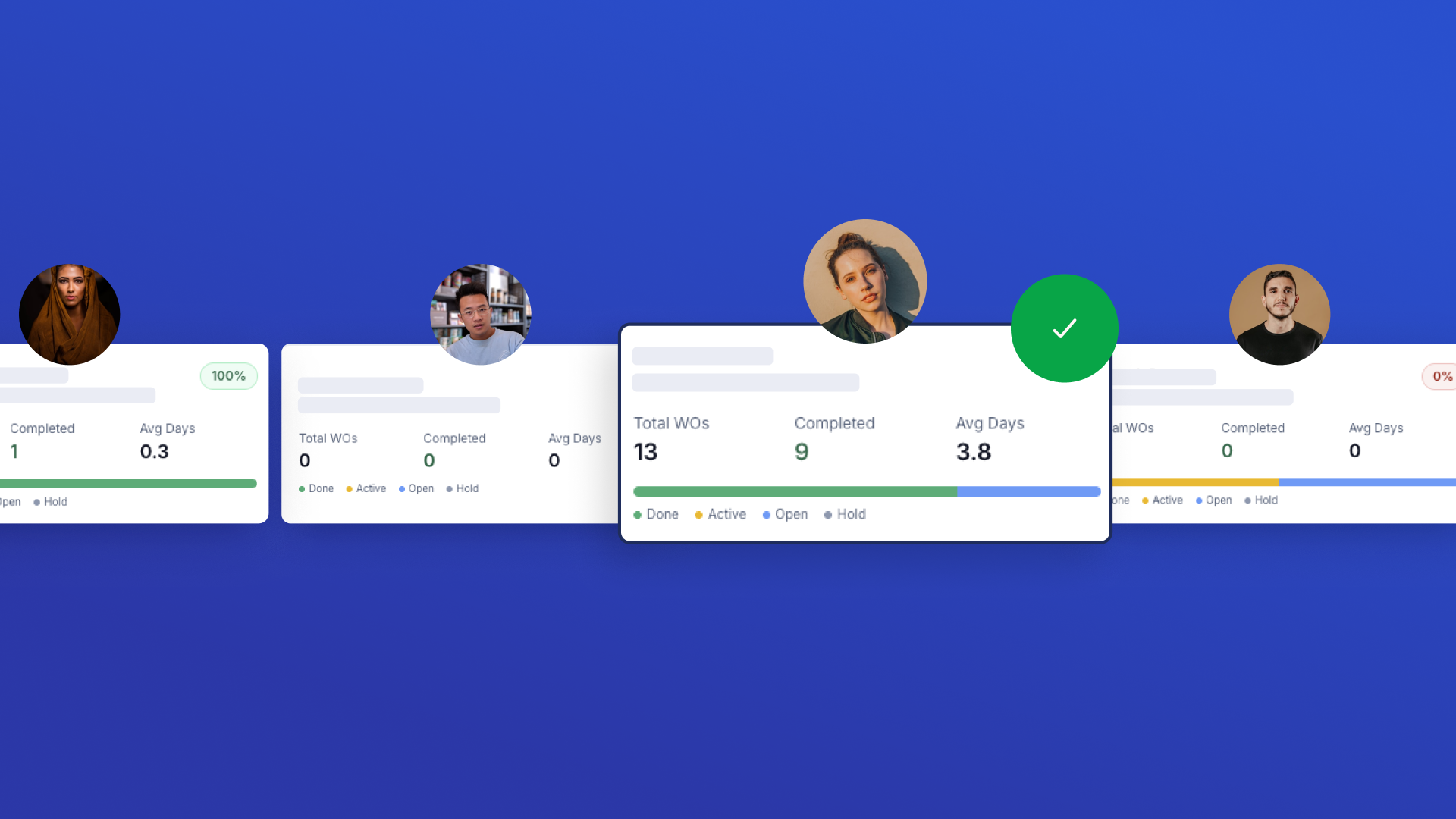
Use this app to monitor and coach your maintenance technicians using live UpKeep work order data. When to use: In weekly team reviews, 1-on-1 check-ins, or any time you need a quick read on how your team is performing. Steps: 1. Select a Timeframe (Last 30 Days, 90 Days, 12 Months, or All Time) to control which work orders feed into the metrics. 2. Browse the roster — each card shows the technician's completion rate, total WOs, and average resolution time. Use Search to find a specific person, or Sort to rank the team. 3. Click any technician card to open their detail view: status and priority breakdowns, category distribution, and a table of recent work orders. 4. Tap "Generate Coaching Report" at the bottom of the detail view to get a personalised performance rating, key strengths, improvement areas, and actionable recommendations. 5. Use Refresh (↻) at any time to reload all technicians and work orders from UpKeep so your metrics reflect the latest activity.

Repair or Replace Cost Evaluator ✅
A specialized decision-support tool for maintenance managers to compare repair estimates against replacement costs using the industry-standard 50% rule. Features inline field guidance, a collapsible How to Use panel, a ratio tooltip, contextual recommendation reasons, and live calculations. Saves analysis decisions as update messages to work orders.


Quick Checklist Completion ✅
Use this app to run structured field inspections and automatically log results as a completed Work Order in UpKeep. When to use: Any time a technician needs to perform a scheduled or ad-hoc inspection — daily equipment checks, HVAC, fire safety, plumbing, or electrical walkthroughs. How to use: 1. Setup — Choose an inspection type (required). Optionally select a location and asset to link the work order to a specific site or piece of equipment. 2. Inspect — Mark every checklist item as Pass, Flag (needs attention), or Fail (immediate action required). All items must be marked before proceeding. 3. Review & Submit — Confirm results, add optional notes, and tap Submit. A completed Work Order is created in UpKeep with priority set automatically based on results (High if any Fail, Medium if any Flag, Low if all Pass).
Team Assignment Dashboard ✅
Team-first dashboard for quickly assigning or reassigning work orders. Filter by team, search people by name, view member cards with their open WOs, and open a person drawer to see all assigned work orders or create/reassign in a few taps. Supports multi-select for bulk reassignment.
Multi-Asset Work Order Builder
Create work orders across multiple assets in one step. Fill in shared work order details first, then select assets — one work order is automatically created per asset. Categories are sourced from your last 1000 created work orders merged with a built-in list, so the category dropdown always has real options and auto-selects the first one.