
Location Custom Fields Viewer
View, search, filter, sort, and export location custom field values. Click any row to open an edit pane — update existing fields or add missing ones with name, value, and unit support.
File Management Dashboard
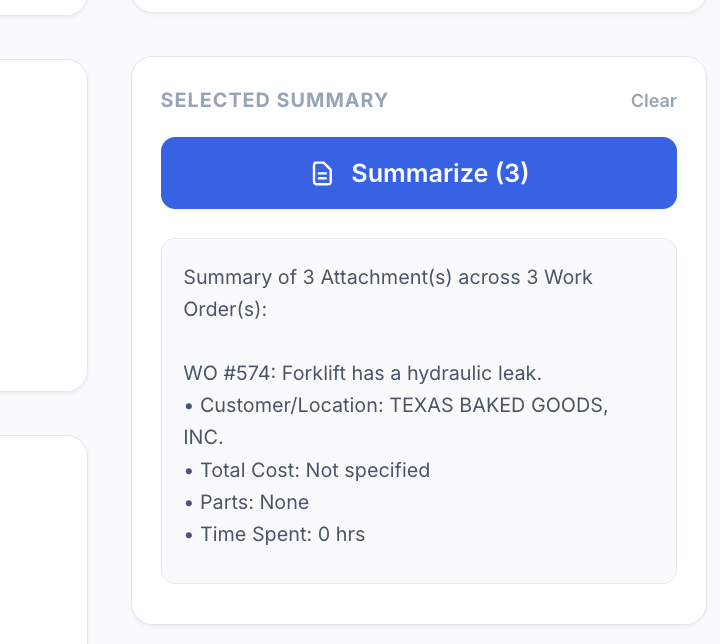
Manage and analyze work order attachments with filtering, multi-select, and automated detail summarization (cost, parts, labor). Inline file preview modal for images and PDFs with Print/Save as PDF and Copy Link support. Fetches ALL work orders with no cap, filtered to last 30 days by default. CSV export of all WO attachment links including WO Number.
Currency Cost Converter
Convert your UpKeep Work Order, Parts, and Purchase Order costs into any world currency using live exchange rates. Work Orders show Labor/Parts/Additional breakdowns in the table, background-fetch detail costs, and export one row per WO with all cost totals in both currencies. Supports 160 currencies, click-to-expand WO cost breakdown, multi-filter, and Reset/Refresh/Help controls on every tab.
PDF Builder
Generate professional PDFs from work orders with a visual drag-and-drop builder. Supports single and multi-WO batch printing.
Work Order Heatmap
Heatmap visualization of work orders by category and location with interactive filters, drill-down, inline category editing, and CSV/PDF export.


Site Operations Card ✅
A mobile-friendly reference card for every location in your UpKeep account. Use it before heading to a site to quickly review access codes, key contacts, PPE requirements, operating hours, connectivity, and vehicle constraints — without opening a work order. **When to use it:** Any time a technician needs to arrive on-site prepared. Ideal for first visits, after-hours calls, or whenever site details aren't part of the assigned work order. **How to use it:** 1. Open the app and search or scroll to find your site. 2. Tap the location to open its reference card. 3. If no info has been added yet, tap **Add Reference Info** to get started. 4. Expand any section (Site Access, Contacts, Safety, etc.) to view details. Tap **Add info** inside any empty section to jump straight into editing. 5. Tap **Edit** (or **Add Info** if empty) in the header to fill in or update all sections at once. 6. Once inside a location, use the **Export CSV** button to download the data as a spreadsheet, or **Print / PDF** to save or print a formatted copy — great for taking offline or sharing with your team. 7. Use the **Refresh** button (↻) to reload the location list if new sites have been added.