Blog Post
How to Choose and Roll out Cloud-Based CMMS Software for Your Maintenance Team
Learn how to choose and roll out cloud-based CMMS software with this comprehensive guide covering key features, benefits, vendor evaluation, and implementation steps.



Key Takeaways
A cloud-based CMMS lets a maintenance team manage work orders, preventive maintenance, and asset records from a browser or phone, with the vendor handling hosting and updates.
Core features include work order management, preventive maintenance scheduling, asset and location tracking, mobile access, and parts tracking.
The main benefits of a cloud-based CMMS are less unplanned downtime, a lighter IT workload, a shared view across sites, and records teams can trust.
The best way to choose a vendor is to test with real work orders and compare every option on usability, configuration, integrations, reporting, security, cost, support, and room to grow.
A cloud-based CMMS puts every asset, work order, and maintenance record in one shared place that technicians can reach from a phone or browser, with no servers to buy, install, or maintain. The vendor handles hosting, backups, and updates. That means a team can start working in the system within days.
This article covers what cloud CMMS software does, which features and benefits matter most, how to choose a vendor, and how to roll one out without losing your technicians along the way.
What Does Cloud Based CMMS Software Do?
A cloud based CMMS is maintenance management software that the vendor hosts and updates, and teams use through a browser or mobile app. From there, teams use it to log assets, create and assign work orders, schedule preventive maintenance, track parts, and report on results.
You'll see this software called cloud CMMS, web-based CMMS, or software as a service (SaaS) CMMS. Despite the different labels, they all describe the same delivery model: The vendor runs the software, and your team signs in online.
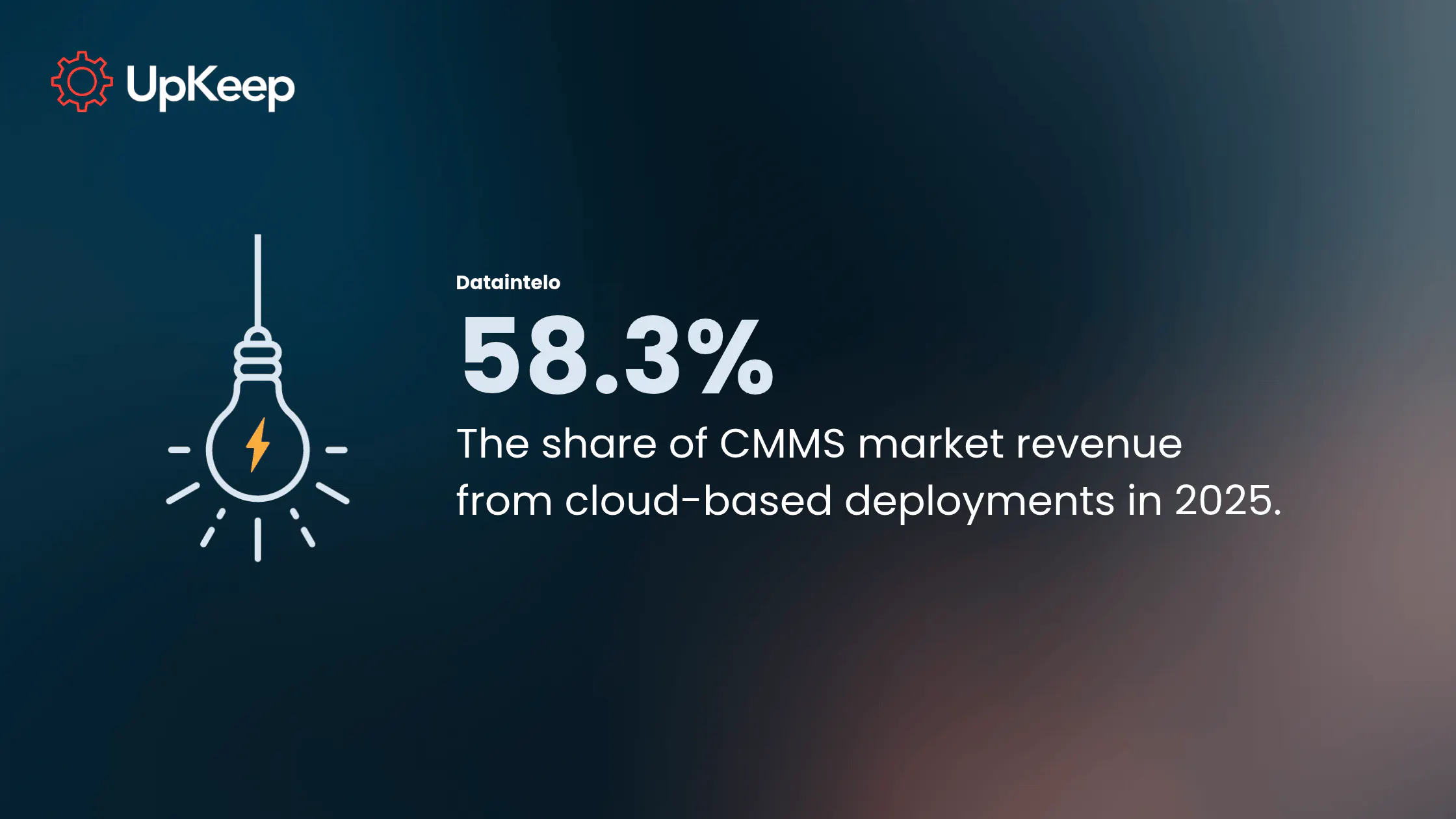
This model is becoming increasingly popular across industries, with cloud-based deployments making up 58.3% of CMMS market revenue in 2025, according to Dataintelo.


UpKeep is one example of a cloud CMMS, meaning technicians can open, update, and close work orders from the mobile app. With Nova AI, they can also update records by typing what they need in plain language while the technician decides what to document.
Cloud-Based CMMS vs. On-Premise CMMS
The main difference between a cloud-based CMMS and an on-premise CMMS is who runs the software. A cloud-based CMMS runs on the vendor’s servers, and your team signs in through a browser or mobile app. An on-premise CMMS is installed on servers your company owns, so your IT team handles hosting, security, backups, and updates. Most of the additional differences stem from that key change.
|
Main differentiator |
Cloud-based CMMS |
On-premise CMMS |
|
Where it runs |
Vendor’s servers |
Your servers |
|
Setup |
Sign in and configure |
Server setup and installation come first |
|
Up-front cost |
Subscription with little hardware |
Often license plus hardware |
|
Ongoing cost |
Recurring subscription, often per user |
IT time, upgrades, and hardware refreshes |
|
Updates |
Vendor delivers them automatically |
Your team schedules and installs them |
|
Access |
Any site with internet, by browser or by phone |
Usually via company network; remote access requires extra setup |
|
Security and data control |
Shared; the vendor secures the platform while you manage access |
Your team handles it end to end |
|
Internet required |
Yes |
No, it can run on a closed network |
Setup is where you see the most significant difference. Cloud-based CMMS can be set up in much less time than on-premise software, which matters for teams that want to start working in the system within days.
On-premise CMMS still makes sense for sites with unreliable internet, closed or air-gapped networks, or policies that require data to stay on company servers may need on-premise software. Those teams accept the tradeoff of more IT work and slower updates.
Cloud-based CMMS may be a better fit for teams that need to start more urgently, a lighter IT workload, and one shared view across sites usually get more from cloud.
Cloud CMMS Key Features
A cloud CMMS can be identified by a handful of core features. Here's what to expect:
Work order management: Requests move from submission to assignment, priority, completion, and sign-off in one place. Technicians attach photos, follow checklists, and log time and parts as they work. UpKeep supports custom fields, checklists, and work order types, so the form matches how a site already runs.
Preventive maintenance scheduling: Preventive maintenance (PM) tasks trigger by calendar date or meter reading, such as hours run, miles driven, or cycles completed. The system generates the work order automatically to streamline the workflow and ensure no item goes unchecked.
Asset and location hierarchy: Teams can nest equipment under rooms, buildings, and sites. Each asset carries its history, manuals, warranty details, and cost to date. A flexible asset hierarchy matters most for multi-site teams that don't organize the same way at every location.
Mobile access and parts tracking: Technicians can pull up work orders, asset history, and stock counts from a phone. Minimum stock levels trigger reorder alerts before a part runs out unexpectedly.
Sensor and platform connections: Sensors only help when a reading leads to a repair. UpKeep Edge sensor readings can feed the same system that creates the work order so a reading becomes a repair task instead of an alert nobody opens.
Benefits of Cloud Based CMMS for Maintenance Operations
Teams rarely switch software for fun. They jump ship because breakdowns, IT upkeep, and hunting for information eat up the week. A cloud-based CMMS tends to pay off in terms of:
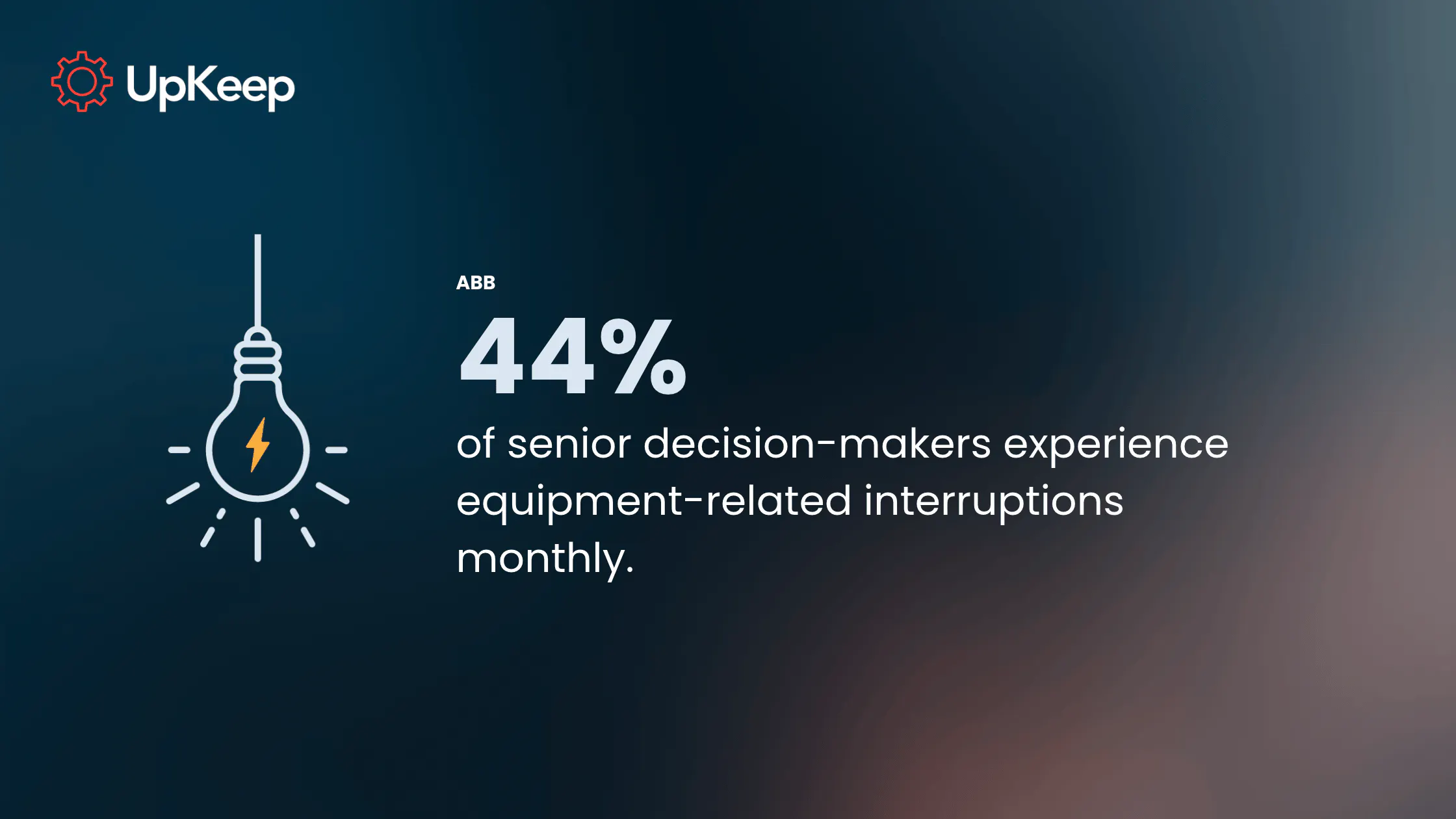
Less unplanned downtime: ABB found that 44% of leaders across industries deal with equipment-related downtime at least monthly. Another 14% report stoppages every single week. Scheduled PMs that generate themselves, leading to faster work order responses, help teams get ahead of failures.
Lower IT burden and a faster start: The vendor handles hosting, backups, and updates, which arrive automatically. A maintenance team can be working in the system within days instead of waiting on server setup.
Access across sites and teams: A regional manager can see open work orders at every location from one place, preventing time-consuming individual facility check-ins. At the same time, contractors and vendors can receive limited access to the jobs assigned to them.
Data you can trust: Every completed job adds to the asset's history, and cost and downtime reports build from real work instead of memory. That history is what lets a team decide whether to repair or replace an aging asset.
Safety and compliance records: Inspections, safety incident reports, and audit trails live in the same platform as the work orders. UpKeep's environmental, health, and safety (EHS) product connects safety incidents to the assets involved, which helps with root cause analysis and gives safety teams better records.

While useful, these benefits depend on first picking a system your team will actually use and be able to deploy.
Questions to Ask Vendors When Choosing a Cloud-Based CMMS
When searching for a cloud-based CMMS, test potential solutions with your own work orders. Then, compare vendors on usability, configuration, integrations, reporting, security, total cost, and support. Ask each service the same questions and use a standardized rubric to compare the answers side by side. You can use the questions below to get started.
Will Our Technicians Actually Use It?
A CMMS only produces useful data if the people doing the work enter it. If closing a work order takes too many steps, your technicians will go back to old methods, and records will fall behind. Build these checks into your trial:
Have a technician create, update, and close a work order on mobile, then compare the time it takes across vendors. Also check how the app handles photos, checklists, and asset lookups by scan or search.
Understand how AI features work in practice. UpKeep's Nova AI lets technicians update records by typing what they need in plain language, which cuts down on typing in the field. Ask any vendor to show the feature on a real task and confirm that a person always stays in control of the final record for quality assurance.
Request a training plan and the time a typical technician needs before they're comfortable using the new system.
Ask whether the vendor offers support like in-app guidance, videos, or live sessions. Check support hours and its channels (phone, chat, email).
Can It Be Configured to Fit How We Work?
Every facility names assets, prioritizes jobs, and assigns work a little differently. A system that enforces one structure often leads teams to build spreadsheets alongside it based on their individual language. Look for flexibility by:
Asking what teams can change without a developer. Custom fields, checklists, work order types, approval steps, and asset hierarchies should be adjustable by an admin. UpKeep supports custom fields, checklists, and work order types, along with a flexible asset and location hierarchy for different organizational structures.
Finding out whether PM schedules can trigger by date, meter reading, or both, and whether work orders can route automatically by type or location.
Asking about limits, such as the maximum number of assets, users, and locations on each plan, and what happens when a team goes over those boundaries.
What Will It Connect to?
A CMMS that sits apart from your other systems leads to siloed information, duplicate entries, and overlooked information. To avoid that headache, check these items:
List the systems you already use, including accounting or enterprise resource planning (ERP), purchasing, HR or identity tools for single sign-on, and any sensors or building systems.
Ask how integrations work. Find out whether connections are built in, available through an open API, or require custom work, and who pays for that work.
If condition monitoring is on the roadmap, ask whether readings can create work orders inside the same platform.
What Reporting and Data Access Do We Get?
You can't fix what you can't see. Clear reporting gives you that insight. It’s also where a CMMS proves its value to managers and executives.
Learn which metrics come standard. Look for PM compliance, downtime, backlog, mean time to repair, cost per asset, and the split between planned and reactive work.
Make sure you can get custom CMMS dashboards too. Managers and executives look at different numbers, so each role should be able to build views around its own key performance indicators (KPIs) without waiting on a report request to the vendor.
Confirm the team can export all of its data in a standard format at any time, including if the contract ends. Ask how long the vendor keeps data after cancellation.
How Will It Protect Our Data?
To determine how secure a cloud CMMS is, ask for a current independent security report, such as an ISO 27701 certification. Then confirm it has these basics:
Multifactor sign-in, which asks for a second proof of identity beyond a password.
Role-based permissions that limit what each user can see and change.
Encryption, audit trails, and tested backup and recovery.
Ask who’s responsible for what, as the vendor secures the platform and your team manages access. A CMMS holds asset records, vendor contacts, inspection results, and sometimes safety incident reports, so protecting that data matters. Data from IBM put the global average cost of a data breach at $4.44 million. Cloud software moves part of the security job to the vendor, but not all of it.
What Will It Really Cost?
A low monthly price can hide add-ons that change the total. Get the full picture by asking about these elements:
Compare per-user pricing, tier limits, and which features sit behind higher plans. Check whether mobile access, integrations, or extra sites cost more.
Ask about one-time costs. CMMS implementation, data migration, training, and premium support are often priced separately.
Get the renewal terms, price increase caps, and cancellation notice period in writing. Ask what a team pays if it adds users or sites mid-contract.
Can It Grow With Us?
The system that fits one site today should still fit five sites in three years. To test for scalability:
Look for the ability to compare sites, standardize processes, and control who sees what across locations.
Understand localization and globalization. Teams with multilingual crews need the mobile app and work order forms in more than one language. UpKeep offers global availability and multilingual support.
Check the ability to add safety, fleet, or sensor monitoring later on. UpKeep's platform spans CMMS, EAM, EHS, Fleet, and Edge, for example, so a team can add those without moving data into a new system.
Find out how the platform behaves with thousands of assets and hundreds of users, and ask for uptime history.
Once you have answers to these questions, score each vendor from 1 to 5 in each category. Let the front-end users, like your technicians, help with the scoring.
Here’s an example vendor score card you can adapt:
|
Category |
Vendor A |
Vendor B |
Vendor C |
|
Usability Technicians close work orders fast |
|||
|
Support Training, hours, response times |
|||
|
Configuration Admins adjust without a developer |
|||
|
Integrations ERP, sensors, single sign-on |
|||
|
Reporting Dashboards and data export |
|||
|
Security Independent report, MFA, permissions |
|||
|
Total cost Subscription plus one-time fees |
|||
|
Room to grow More sites, users, and modules |
|||
|
Total: |
|||
|
Have technicians help with the scoring. |
|||
How to Roll out Cloud-Based CMMS Software
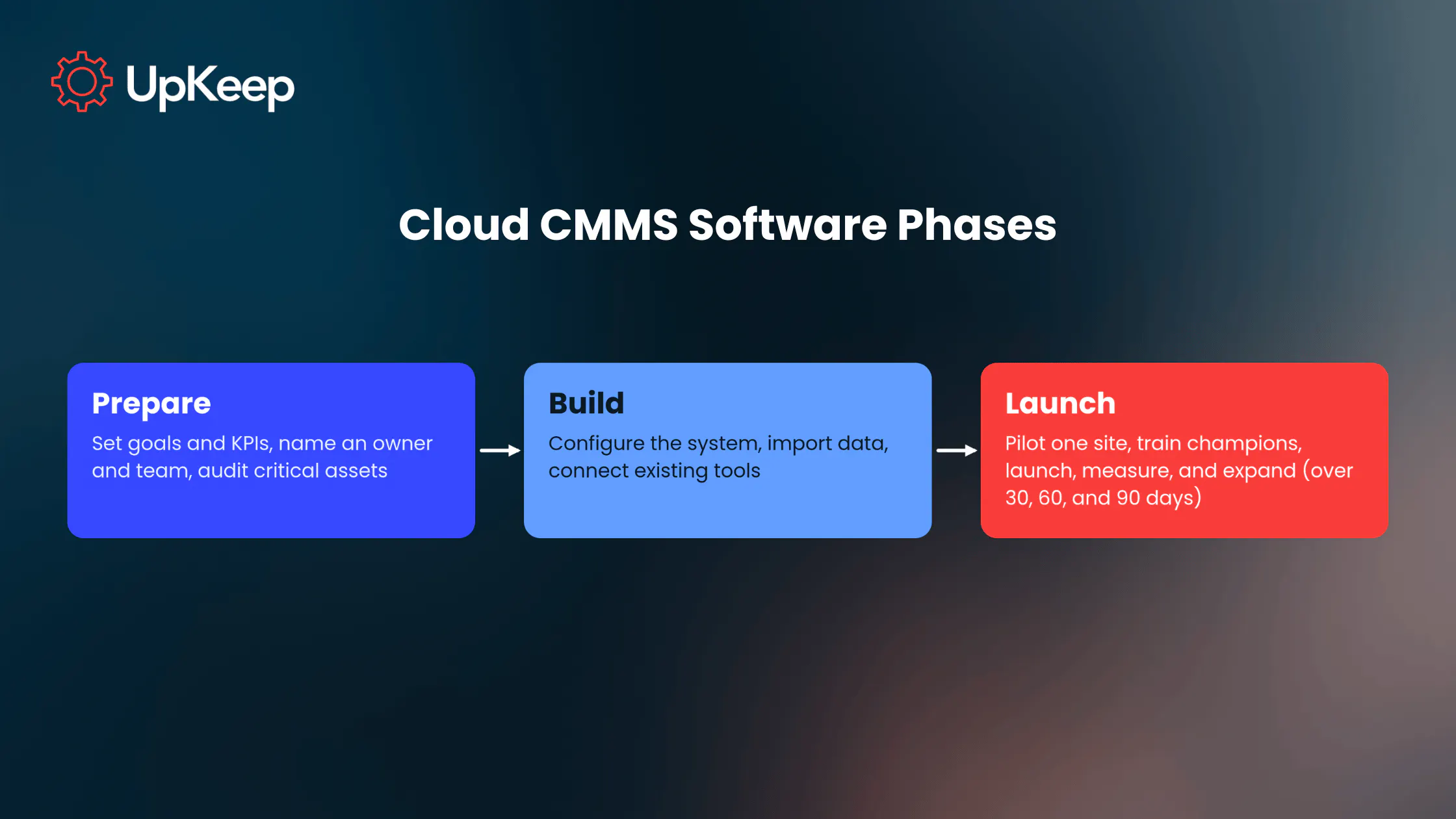
Launching cloud-based CMMS software takes time, from setting goals to reviewing results after it goes live. Think of the rollout as a people project first and a software project second. Start with clear goals and clean data on your critical assets, run a small pilot, and train a respected technician at each site as a champion. Then go live site by site and measure as you go.
1. Set goals and KPIs
Pick two or three measurable targets before touching the software. Good starting points are PM completion rate, mean time to repair, and the share of work that's reactive. Write down today's numbers so there's a baseline to compare against later.
2. Name an owner and a small project team
Assign one person to run the rollout, plus a maintenance supervisor, a technician, and someone from IT or finance. A technician on the team helps catch problems in how work actually gets done. Prosci's research ranks visible executive sponsorship as a top success factor, so get a leader to announce the project and explain why it matters.
3. Audit your assets and prioritize
Gather what you have now, whether that's spreadsheets, paper files, or an old system. Start with the equipment that stops production or closes a space when it fails. A clean list of 100 critical assets beats a messy list of 2,000.
4. Configure the system to match your operation
Set up your location and asset hierarchy, work order types, priorities, and checklists before anyone logs in. UpKeep supports custom fields, checklists, and work order types, so the setup can mirror the way each site already works. Configure for the process you want to run, since the current one may be part of what you're trying to fix.
5. Import your data
Load asset records, PM schedules, parts inventory, and vendor contacts. Clean up duplicates and inconsistent naming first, because the system will only be as reliable as the data going in.
6. Connect the tools you already use
Link accounting, ERP, or other systems so data isn’t entered twice. If you use sensors, connect them now so readings can trigger work orders. UpKeep Edge readings feed the same platform, which keeps the alert and the repair task in one place.
7. Pilot with one site or one crew
Run real work orders through the system for two to four weeks. Collect feedback on anything confusing, slow, or missing, and fix it before the broader launch. A small pilot is much easier to adjust than a full rollout.
8. Pick and train champions
Keep sessions short and tied to real tasks, like closing a work order from a phone or scanning an asset tag. Choose a respected technician at each site to answer questions, since coworkers tend to trust a peer's opinion over a manager's. UpKeep's mobile app and Nova AI can shorten the learning curve, and the technician still decides what goes into each record.
9. Launch, measure, and expand
Go live site by site and review adoption and KPIs after 30, 60, and 90 days. Check if technicians close work orders on time and whether reactive work is shrinking as a share of the total. Use those results to decide when to bring on the next site, and share early wins with the team to keep momentum going.

Putting Cloud-Based CMMS to Work
A cloud-based CMMS gives maintenance teams one shared record of every asset, work order, and part, reachable from a browser or phone. The core features, from work orders and PM scheduling to mobile access and sensor connections, turn that record into less downtime, a lighter IT workload, and clearer reporting across sites.
To find a good solution, test software options with real technicians and ask every vendor the same questions about usability and support, configuration, integrations, reporting, security, cost, and growth. A rollout that starts with clear goals, clean data, a well-crafted pilot, and respected champions gives the new system its best chance of sticking.
UpKeep's cloud CMMS is built around those same ideas. Request a demo to see how UpKeep fits your team's work.
Frequently Asked Questions About Cloud Based CMMS
What's the difference between cloud CMMS and on-premise CMMS?
A cloud CMMS runs on the vendor's servers, and teams reach it through a browser or mobile app. An on-premise CMMS runs on servers your company owns and maintains. Cloud systems update automatically and usually cost less to run, while on-premise gives you full control over the environment. Sites without internet access or with strict data rules often choose on-premise.
Is a cloud-based CMMS secure?
A cloud-based CMMS can be very secure when the vendor follows strong practices. Look for an independent security certification, multifactor sign-in, role-based permissions, encryption, audit trails, and tested backup and recovery. The vendor protects the platform, but your team still manages who has access. Ask for a current security report before you sign.
How much does CMMS cloud software cost?
Most cloud CMMS vendors charge a monthly or annual subscription, often priced per user and set by plan tier. Costs rise with the number of users, assets, sites, and add-ons like sensors or safety tools. Ask about one-time fees for setup, data migration, training, and premium support, then get renewal terms in writing before you commit.
4,000+ COMPANIES RELY ON ASSET OPERATIONS MANAGEMENT
Leading the Way to a Better Future for Maintenance and Reliability
Your asset and equipment data doesn't belong in a silo. UpKeep makes it simple to see where everything stands, all in one place. That means less guesswork and more time to focus on what matters.